
What is a Theme?Link to this section
Fundamentally, the theme system is a way to control the Design and Appearance of your ClassicPress site.
A theme is a collection of files (templates, stylesheets, images, scripts) that work together to modify the way your site is displayed, without modifying ClassicPress itself.
Although not required, almost every theme contains multiple template files to control certain parts of your site, such as header, content, sidebar and footer. Also included are template files for posts and pages.
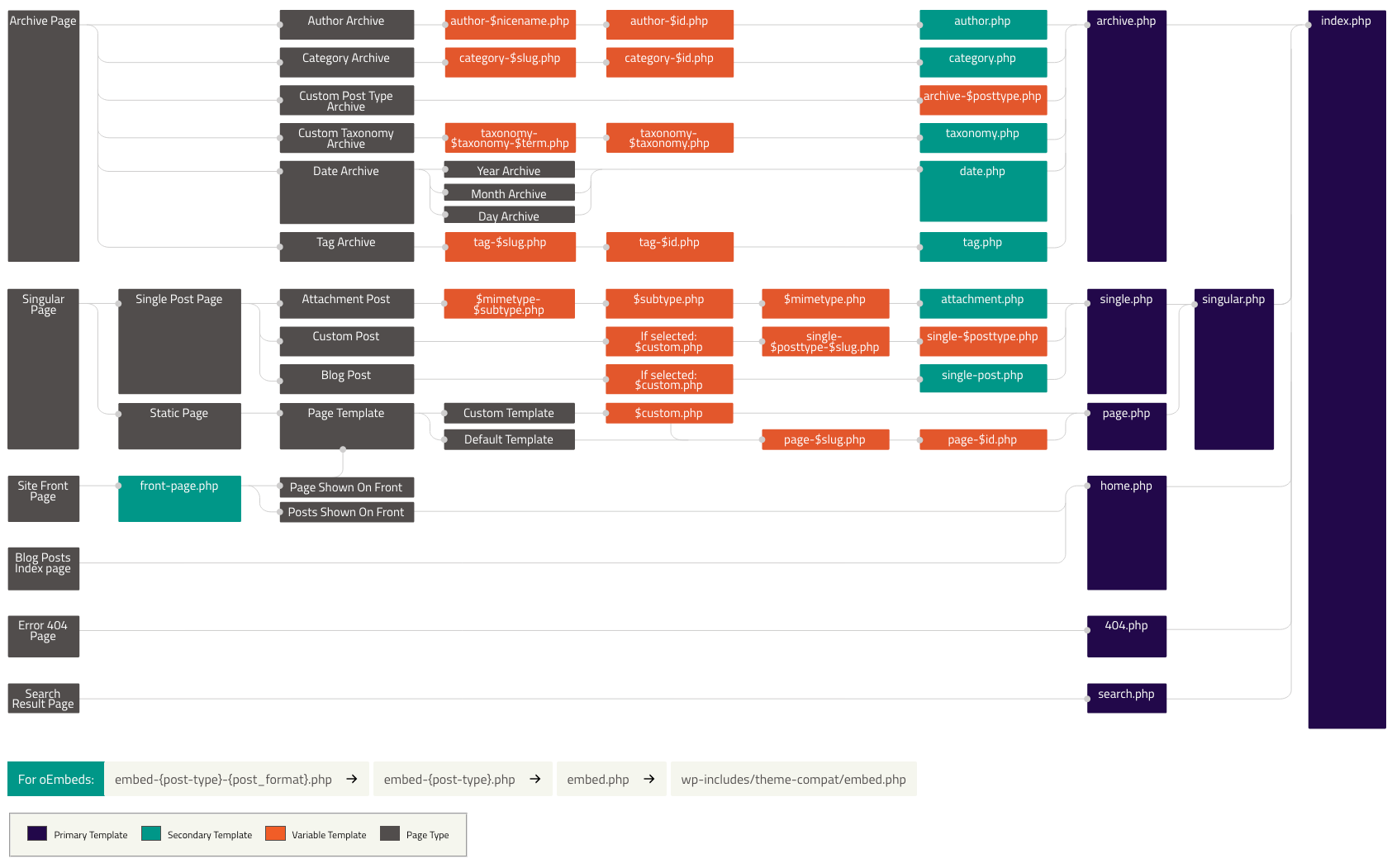
Let’s say you write a lot about Bread and Wine. Through the use of the ClassicPress loop and template files, you can customize your Wine category posts to look different from your Bread category posts. With this powerful control over what different pages and categories look like on your site, you are limited only by your imagination. For information on how to create custom look for various templates in your theme, take a look at the Template Hierarchy.
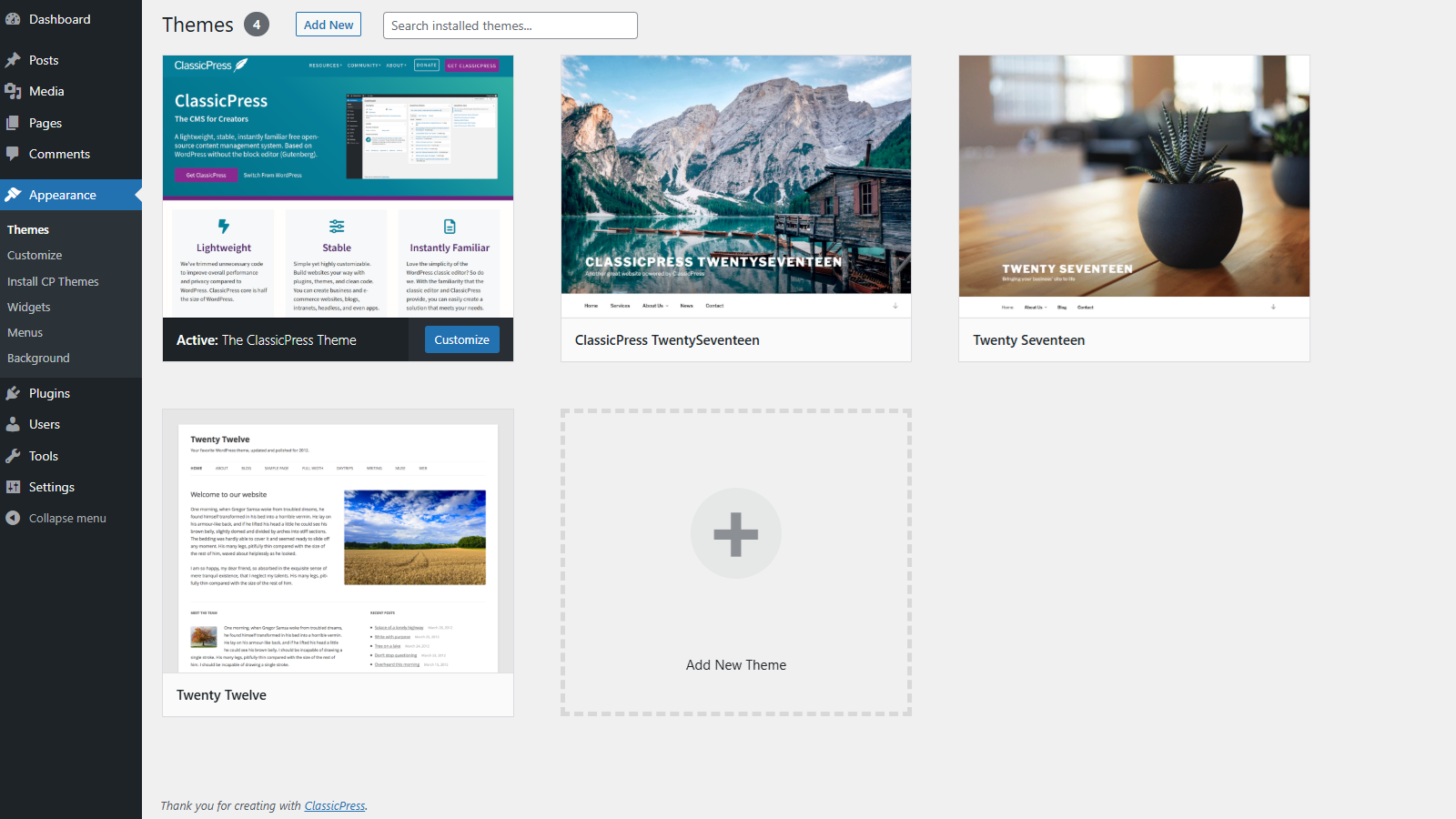
Installed (active and inactive) themes will appear in the Appearance > Themes screen. ClassicPress themes as well as WordPress themes are listed here.
Clicking the theme thumbnail will display information about the respective theme.
Default ThemesLink to this section
ClassicPress currently comes with 3 themes (of which 1 child theme).
- The ClassicPress Theme, our default theme.
- The TwentySeventeen theme, a for ClassicPress modified version of the WordPress TwentySeventeen theme.
- The ClassicPress TwentySeventeen child theme.
The ClassicPress TwentySeventeen child theme was created for preserving the ClassicPress copyright in the footer and for other personal modifications to the WordPress TwentySeventeen theme.
From ClassicPress 3.0 the ClassicPress TwentySeventeen child theme will be removed in favour of our modified version of the TwentySeventeen theme.
Get New ThemesLink to this section
ClassicPress makes it possible to install themes from the ClassicPress Theme Directory as well as the WordPress Theme Repository.
Every theme in the ClassicPress Theme Directory and WordPress Theme Repository is reviewed by a dedicated team and tested against wide range of rules, all of which are ensuring secure and pleasant experience for the theme user.
The ClassicPress community recommends to use ClassicPress themes, and/or to develop your own theme, made for ClassicPress.
With the ClassicPress Directory Integration plugin you get access to themes that are 100% built for ClassicPress. They will appear in the Appearance > Install CP Themes screen.
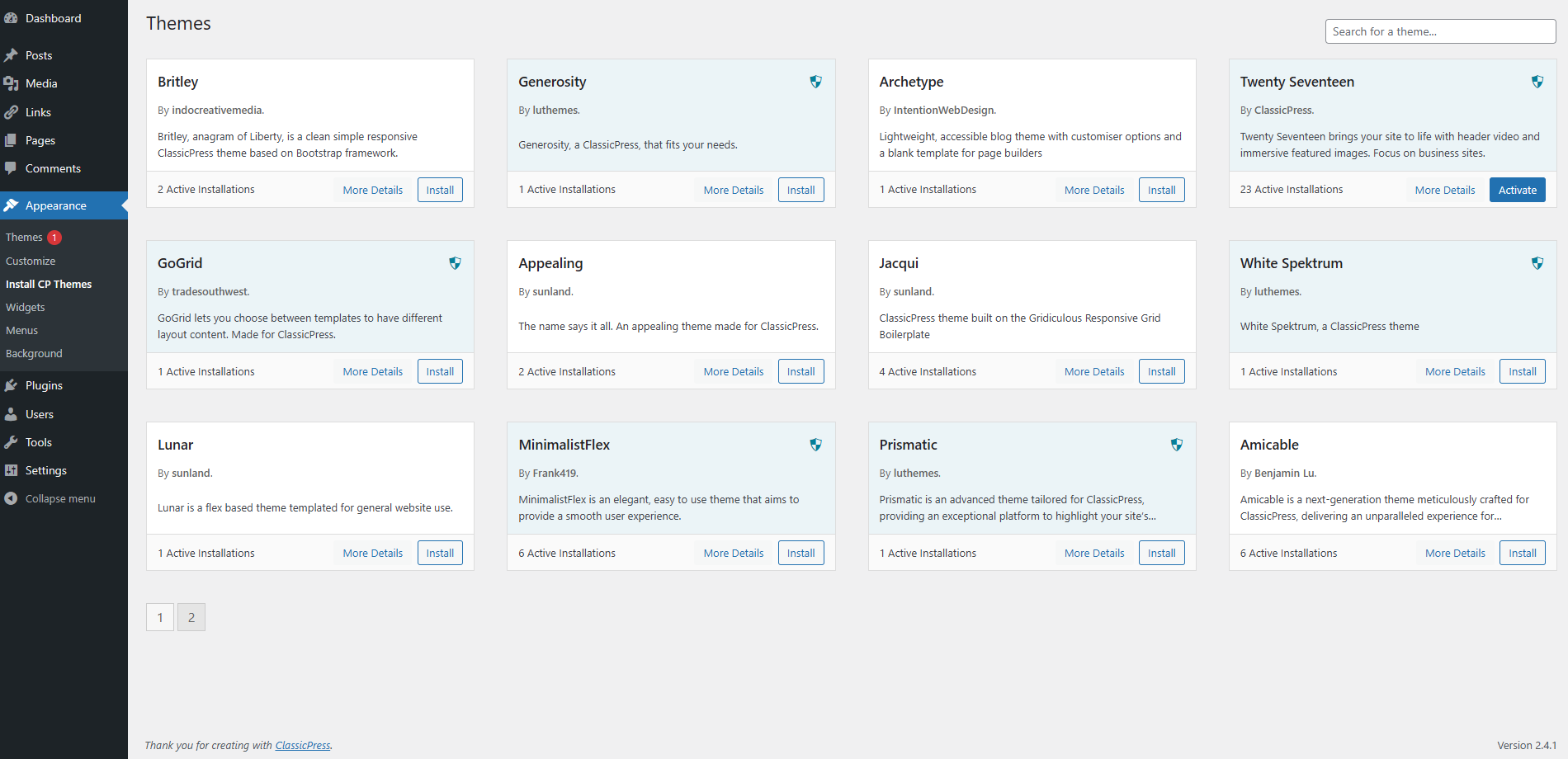
As ClassicPress grows, developers do and will continue to add themes to the ClassicPress Theme Directory that are designed to work With ClassicPress.
ClassicPress themes are stored on GitHub, so you can also download their latest Releases from the respective GitHub Repository.
From the Appearance > Themes screen you could search for and install WordPress themes.
On this screen click the + or Add New button and you will be presented with the screen below.
Clicking the theme thumbnail will display information about the respective theme and a preview of your site with your site’s content.

Keep in mind that reviewers of WordPress themes do not test their themes with ClassicPress. It is up to you to ensure those themes works with ClassicPress (see Theme Compatibility) and to keep yourself updated with the ongoing development work done on the theme you choose.
Unfortunately the WordPress Theme Repository does not stop any theme from showing up in your Themes screen on a ClassicPress Install, even if that theme is not compatible with ClassicPress.
Theme CompatibilityLink to this section
ClassicPress follows SemVer and will never intentionally break backwards compatibility as long it updates within a minor or patch release. If ClassicPress updates to a major release, it might break backwards compatibility and themes should be carefully tested before used.
All WordPress themes that require WordPress version 6.2 or lower will generally work in ClassicPress. (For ClassicPress version 1 this was WordPress version 4.9 or lower.) WordPress themes explicitly requiring WordPress version 6.3 or higher are potentially incompatible with ClassicPress, although they might work.
Depending on the Requires at least header in the theme’s style.css file a notice will be displayed, in case a theme is not compatible. It’s also not possible to install or update such a theme.
This is what will be displayed in your dashboard if the theme does not work with WordPress 6.2 and thus is not compatible with ClassicPress:
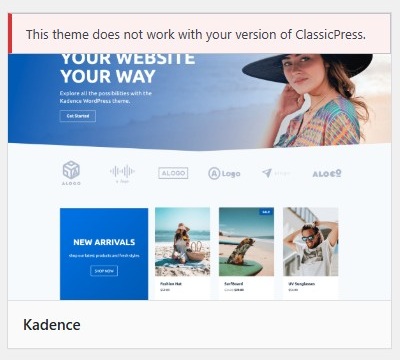
You should visit the theme page in the WordPress Theme Repository for more details and to determine the minimum required WordPress version.
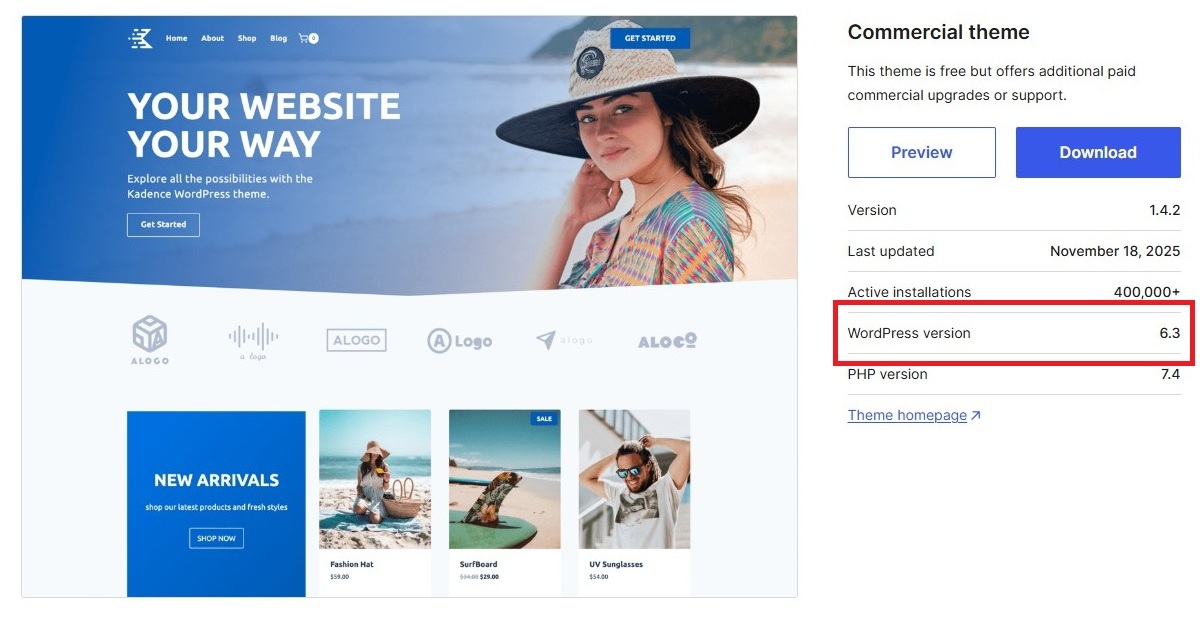
When choosing a theme from the WordPress Theme Repository you must make sure you are not installing a theme that uses any Blocks or some of the newer WordPress features like Patterns and Templates. Those will not work in ClassicPress.
Adding New ThemesLink to this section
Most of themes come with installation instructions, especially the ones that may require more steps than the usual theme installation. Be sure to read through and follow those instructions for the successful installation of the theme. If your theme does not work after following any provided instructions, please make sure it is supposed to work with ClassicPress (see Theme Compatibility) and contact the theme author for help.
Adding New Themes using the Administration ScreensLink to this section
You can upload any (compatible) theme from the ClassicPress Theme Directory and WordPress Theme Repository directly to your site via the Appearance > Themes screen.
For ClassicPress Themes:
(this requires the ClassicPress Directory Integration plugin to be installed)
- Log In to your ClassicPress Administration Area.
- Select the Appearance screen, then Install CP Themes.
- Either use the Search option or scroll through the pages to locate a theme you would like to use.
- Click on the More Details link for more theme info or the Install link to upload the theme to your site.
For WordPress Themes:
- Log In to your ClassicPress Administration Area.
- Select the Appearance screen, then Themes.
- Select Add New.
- Either use the Search or Filter options to locate a theme you would like to use.
- Click on the Preview link to preview the theme or the Install link to upload the theme to your site,
Or use the Upload Theme button at the top of page to upload a zipped copy of a theme that you have previously downloaded to your machine. This way you can also upload themes that are not stored on the ClassicPress Theme Directory and WordPress Theme Repository.
Adding New Themes Manually (FTP)Link to this section
To add a new theme to your ClassicPress installation via FTP protocol, you’ll need an FTP client and extracted theme files.
- Download the theme archive (.zip) and extract the files it contains. You should have a folder named as theme itself, containing theme files.
- Using an FTP client to access your host web server and navigate to /wp-content/themes/ directory.
- Upload the theme folder to this directory on your host server.
- Follow the instructions below for activating the new theme.
Activating the ThemeLink to this section
Now that new theme is in the /wp-content/themes/ directory (whether you used Administration Screens or FTP method), this new theme is ready to be activated. All themes in the /wp-content/themes/ directory are available for activation and, but only one theme from this directory can be active.
When the theme is already uploaded but not activated the Live Preview option will give you a preview of your site with your own, existing content.
When theme is activated it means that this theme’s style and functionality (look and behavior) will be applied on your site. You will be informed by administration notification about successful activation of the theme.

To activate a theme for your site:
- Log in to the ClassicPress Administration Area.
- Select the Appearance screen, then Themes.
- You should see here all themes from your /wp-content/themes/ directory and from here you can see details for each of them by clicking on Theme Details (rollover the theme thumbnail).
- Live Preview option will give you preview of your site with your site’s content.
- To activate the theme click the Activate button.
- Your selection will immediately become active.
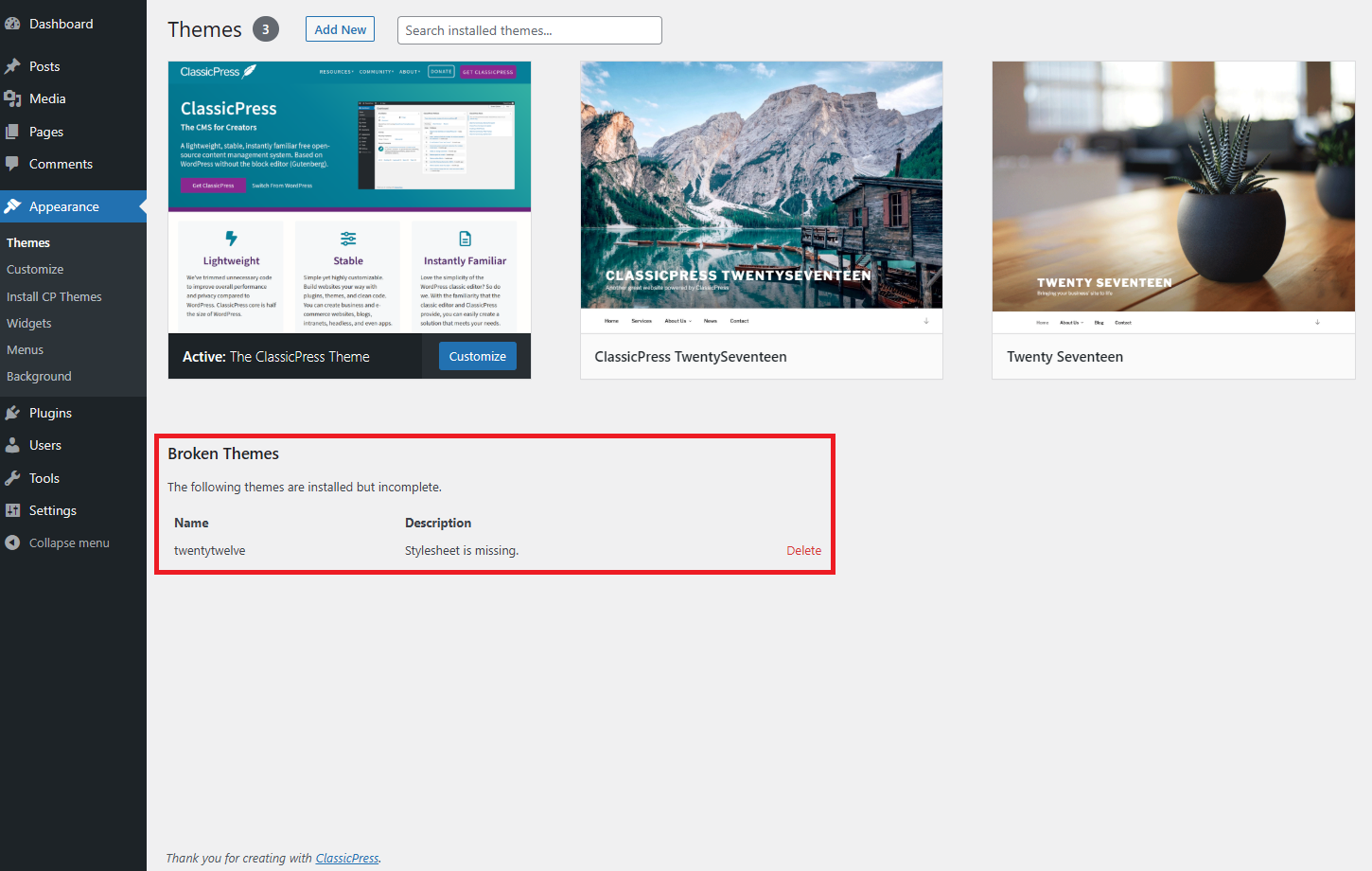
Note: If the theme preview is blank, do NOT activate the new theme without investigating further. Your site may not be displayed correctly, otherwise. If you do not see theme’s thumbnail at all, your new theme might be corrupted or broken. Take a look below installed theme’s thumbnails if there is any info about broken themes. In this case contact the theme author for help.
Updating ThemesLink to this section
Theme developers update their themes occasionally, those updates contain enhancements and/or bug fixes.
Updates are enabled for all installed (active and inactive) themes that are stored on the ClassicPress Theme Directory and the WordPress Theme Repository (as long as the update does not break compatibility). For ClassicPress themes the ClassicPress Directory Integration plugin needs to be installed.
You will be notified about updates via the Appearance > Themes screen.
Updates are also listed at the Dashboard > Updates screen, from there you can update all themes at once. But this screen gives you less information.
Before updating the theme make sure the new version still works with ClassicPress (see Theme Compatibility).
Creating ThemesLink to this section
If you are interested in creating your own theme for distribution, or learning more about the architecture of themes, there are several resources where to start.
- The WordPress Theme Handbook.
Keep in mind that this is a not ClassicPress Focused Documentation and there might be details documented that are invalid for ClassicPress. - The ClassicPress Code Reference.
- The ClassicPress Developer Guides.
- The ClassicPress Theme Guidelines.
- The ClassicPress Programming Forum.
- The ClassicPress Themes Forum.
- The ClassicPress Themes Zulip channel.
If you want to customize your current theme for your own use, consider using a child theme. The ClassicPress CMS already comes with a TwentySeventeen child theme bundled, for an easy and fast kickstart of your (TwentySeventeen) development work. Detailed information can be found in our Creating a Child Theme document.