
Exporting your ClassicPress data (posts, pages, custom post types, comments, custom fields, categories, tags, custom taxonomies, and users) is sometimes necessary and useful. If you are moving to a new host or just want a backup of your site data, then Exporting your site is the answer. Once the export file is created, that file can be used for import by the Tools Import Screen.
The Export screen is accessible via the administration > Tools > Export.
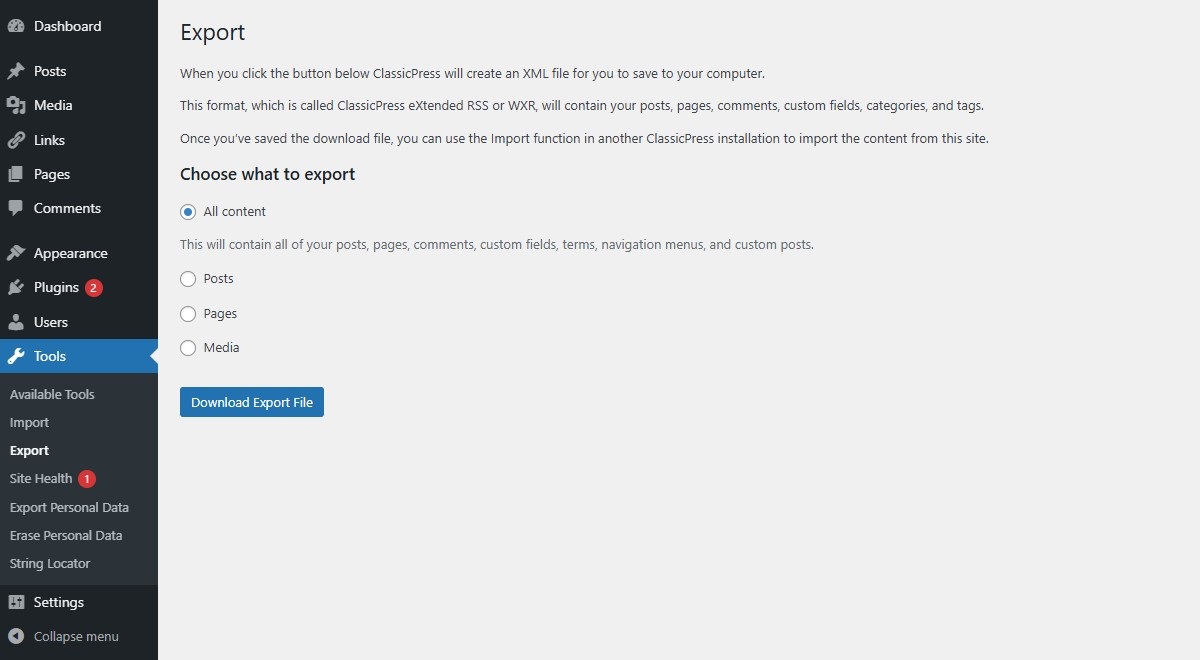
Export ScreenLink to this section
When you click the “Download Export File” button, ClassicPress will create an XML file for you to save to your computer.
This file will contain your posts, pages, custom post types, comments, custom fields, categories, tags, custom taxonomies, and users.
Once you’ve saved the download file, you can use administration > Tools > Import > WordPress at another ClassicPress site to import this data.
Filters and OptionsLink to this section
- All content – export all of your posts, pages, comments, custom fields, terms, navigation menus, and custom posts.
- Posts – check this radio button to expose additional filtering when exporting posts.
Categories – select only one category with this select box or leave at All Categories.
Authors – select a specific author from the select box or leave at All Authors.
Date range – select both the starting and ending post date to include in export.
Status – select the post status (e.g. Published) to export or leave at All Status. - Pages – check this radio button to expose additional filtering when exporting pages.
Authors – select a specific author from the select box or leave at All Authors.
Date range – select both the starting and ending page date to include in export.
Status – select the page status (e.g. Published) to export or leave at All Status. - Media – check this radio button to expose additional filtering when exporting media. Note that this does not export media files, only meta data, so keep the files in place until you have run the import at the new site.
Date range – select both the starting and ending media date to include in export. - Download Export File – click this button and the file, with any filters selected, will be created and you will be asked to save that file to your local computer.
Export – Import pluginsLink to this section
There are also (WordPress) plugins around that let you export / import your entire site from within the ClassicPress admin area. Because none of them officially support ClassicPress, we cannot guarantee they also work properly in ClassicPress.
ClassicPress Migration PluginLink to this section
Do you want to migrate your current site from WordPress to ClassicPress? You’ll need the ClassicPress Migration Plugin, which is not included on the Export screen. The Migration Plugin can also be used to migrate your site from ClassicPress to WordPress and between different versions of ClassicPress.