
In the Comments Screen you can edit or delete content found in comments to your posts, and you can mark comments as spam, send comments to the trash, and reply to comments.
A number of rules can be defined about who can write comments, and how comments are moderated. These rules are managed via the Settings Discussion screen.
Comments ScreenLink to this section
Table of CommentsLink to this section
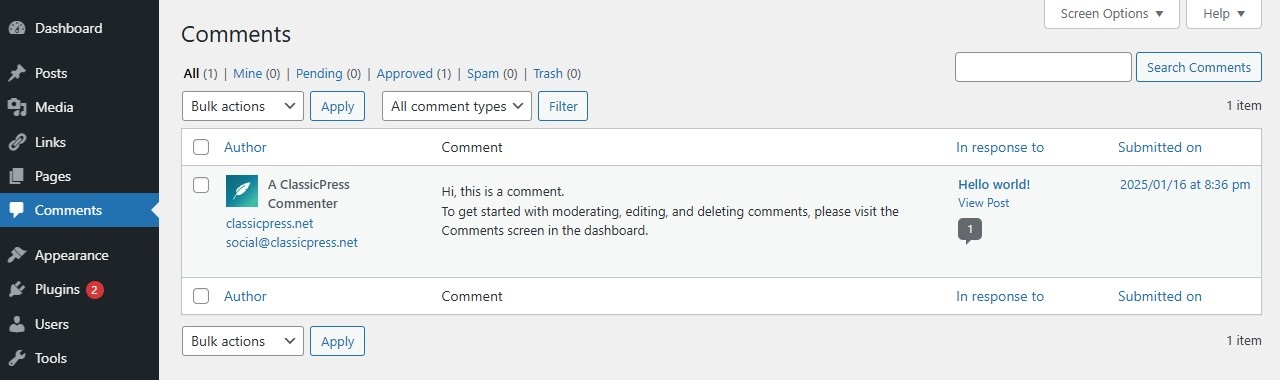
The table of comments displays all the comments, with the most recent comment displayed first.
- [ ] – This checkbox, when clicked (checked), “selects” that particular comment to be processed by a Bulk Action.
- Gravatar – This is a picture or gravatar of the comment author.
- Author – This is the name of the comment author. Below that is the commenter’s site in the form of a URL that can be click to visit that commenter’s site. Below that is the comment author’s email address that can be clicked to begin an email to that address. And below that is commenter’s IP address in the form of a link. Clicking that IP address link causes all the comments originated by that IP address to be displayed, thus allowing a Bulk Action to be applied to all comments from that address.
- Comment – The actual comment that was submitted. Hovering over any comment gives you Immediate Actions that can be performed on that comment.
- In response to – There are three elements. The text is the name of the post that inspired the comment, and links to the post editor for that entry. The View Post link leads to that post on the public facing site. The small bubble with the number in it shows the number of approved comments that post has received. Clicking the bubble will filter the comments screen to show only comments on that post.
- Submitted on – Date and time the comment is submitted, presented as a link. Clicking the link will take you to that comment on the public facing site.
Sortable ColumnsLink to this section
Some column headings can be clicked to sort the table of comments in ascending or descending order. Hover over the column title, for example Author, to see the up-arrow or down-arrow. Click the heading to change the sort order.
Page NavigationLink to this section
If more than one page of comments is available, two double-arrow boxes are provided to move to the first and last page respectively. Also two single-arrow boxes are displayed to move one page backward or forward. Finally, a box showing the current page number can be used to enter a page to directly display. The number of comments displayed per page is set under the Screen Options (see below).
Screen OptionsLink to this section
The Screen Options allow you to choose which columns are displayed, or not displayed, in the underlying table. Clicking on the Screen Options tab shows a list of the columns with a check-box next to each column. Check the box for each column you want displayed in the table, or uncheck the box to not display that column. In addition, the number of comments per page can be set.
SearchLink to this section
Above the table, to the right, is a search box where you can enter a word, or series of words, and click the Search Comments button to search and display all the comments meeting your search words.
Filtering OptionsLink to this section
Above the table are links to All (comments), Mine, Pending, Approved, Spam and Trash, that when clicked, will cause just the posts of that type to be displayed in the underlying table.
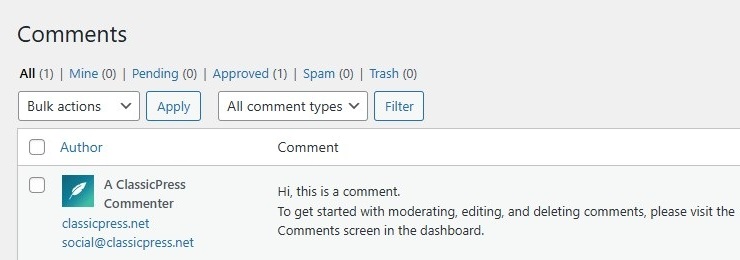
Below that, and to the right of the Bulk Actions Apply button, is one other filter option:
- Show all comment types – This select box allows you to select, by type, which comments are displayed in the table. By default, “All comment types” is selected and all of the comments are displayed.
Using Selection, Actions, and ApplyLink to this section
SelectionLink to this section
This screen allows Bulk Actions to be performed on one or more comments selected in the table. For Bulk Actions to be performed on multiple comments at once, those comments must be first selected using the checkbox to the left of the comment.
ActionsLink to this section
Actions describe the process to be performed on particular comments. There are two styles of actions that will be referred to as Bulk Actions and Immediate Actions.
- Bulk Actions
These actions can be performed on one, or more comments, at one time, if those comments have been previously selected. Bulk Actions are available as choices in the Bulk Actions select box, above the table. - Immediate Actions
Immediate Actions (also known as Quick Edits) are performed immediately, on an individual comment. Hovering the mouse cursor over the comment row reveals the actions under the Comment column.
The available Bulk Actions are:
- Approve/Unapprove – If a comment is currently in an approved state then this link shows as Unapprove (in orange), but if the comment is Unapproved this link shows as Approve (in green). Clicking the Approve or Unapprove link changes the comment to the opposite status.
- Mark as Spam – This action will move all selected comments to the spam. See the Spam section below for details on this action.
- Move to Trash – This action will move all selected comments to the trash.
And the available Immediate Actions are:
- Approve/Unapprove – If a comment is currently in an approved state then this link shows as Unapprove (in orange), but if the comment is Unapproved this link shows as Approve (in green). Clicking the Approve or Unapprove link changes the comment to the opposite status.
- Reply – This action is just an in-line edit allows you to reply to that comment. Click Cancel to cancel and abort the edit of this comment.
- Edit – This action displays the Edit comment screen.
- Quick Edit – This action is just an in-line edit allows you to change the following items of a comment: Comment (text), Name, Email address and URL. Click Cancel to cancel and abort the edit of this comment.
- Spam – This action, shown in red, marks the comment as spam. See the Spam section below for details on this action.
- Trash – This action, shown in red, sends the comment to the trash bin. Comments sent to the trash later be restored or deleted permanently.
ApplyLink to this section
After one or more comments are selected, and after a Bulk Action is specified, the apply button performs the given action on the selected comments. Remember, prior to executing actions, one or more comments must be selected, as described before.
SpamLink to this section
ClassicPress includes several built-in settings that can help you reduce or manage comment spam. You can manage this in Settings > Discussion.
Moderate comments before they appear
Comment moderation is one of the simplest and most effective ways to deal with spam. When moderation is enabled, comments won’t appear on your site until an administrator approves them.
Require commenters to provide details
You can make commenting a little harder for spammers by requiring people to enter a name and email address, or by requiring them to be registered and logged in before they can comment.
These settings can help reduce some automated spam, although they may not stop every spammer.
Limit the number of links allowed
Because many spam comments include links, ClassicPress lets you hold comments for moderation if they contain more than a set number of links.
This can be useful for catching spam, but keep in mind that it may also affect legitimate comments that include multiple links.
Add words or terms to moderation lists
You can add words, IP addresses, email addresses, names, or other terms to your moderation or disallowed comment key lists. Comments containing those items can then be held for review or blocked automatically.
Disable comments where they are not needed
If a page or post does not need comments, you may decide to turn comments off completely. This can be a simple way to avoid spam on content where discussion is not important.
Manage spam comments
Once a comment has been marked as spam, that comment and other spam comments can be accessed via the Spam filtering link above the table of comments. Once those spam comments are accessed, then each spam comment can be unspammed or can be deleted permanently. In addition an Empty Spam button can be clicked and all comments that are marked as spam are deleted permanently. Note that the Empty Spam button deletes all spam comments even if the comments are not selected.
Edit CommentLink to this section
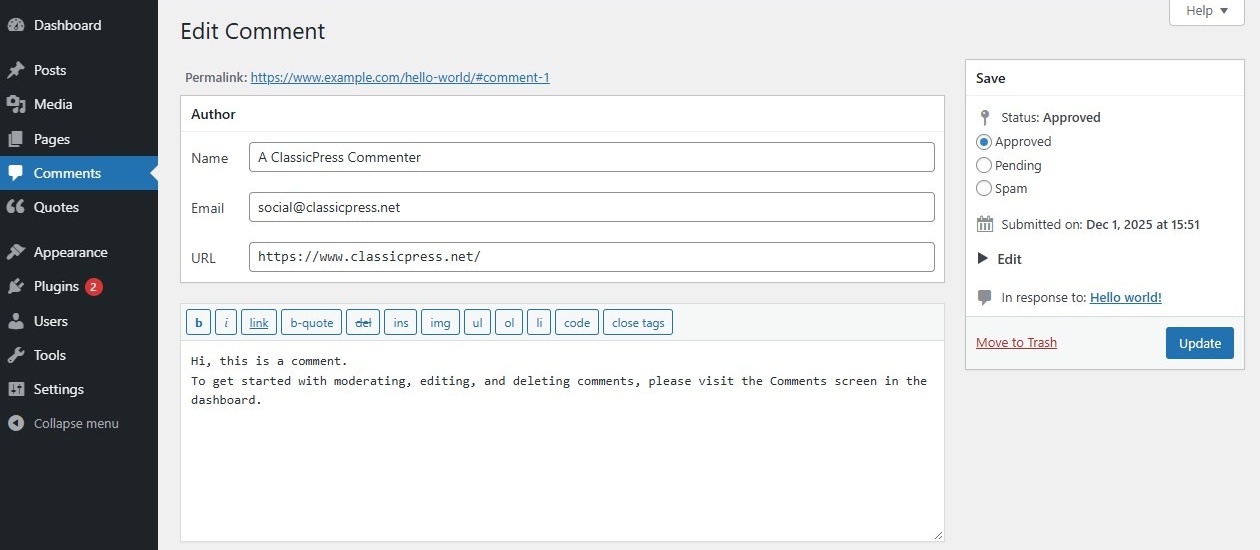
This screen allows you to change the comment and the status of the comment. Hovering the comment row in the table and clicking “Quick Edit” or “Edit” lets you eddit the comment. The latter one gives you all available edit options of the comment.
- Author
Name – The name given by the author of the comment.
Email – The email address given by the author of the comment.
URL – The site URL given by the author of the comment. - Comment
Edit comment box – The edit box containing the content where changes can be made to said text. - Status
Approved – Radio button to mark this comment as approved.
Pending – Radio button to mark this comment as pending (unapproved).
Spam – Radio button to mark this comment as spam.
Submitted on – Click the “Edit” button to edit the date and time this comment was submitted.