
The Settings Discussion Screen allows you to set the comments related options (also called discussion). The administrator decides if comments are allowed, if pingbacks and trackbacks are acceptable, and what is considered comment spam. On this screen you also decide when your site sends you email notifications of certain events at your site.
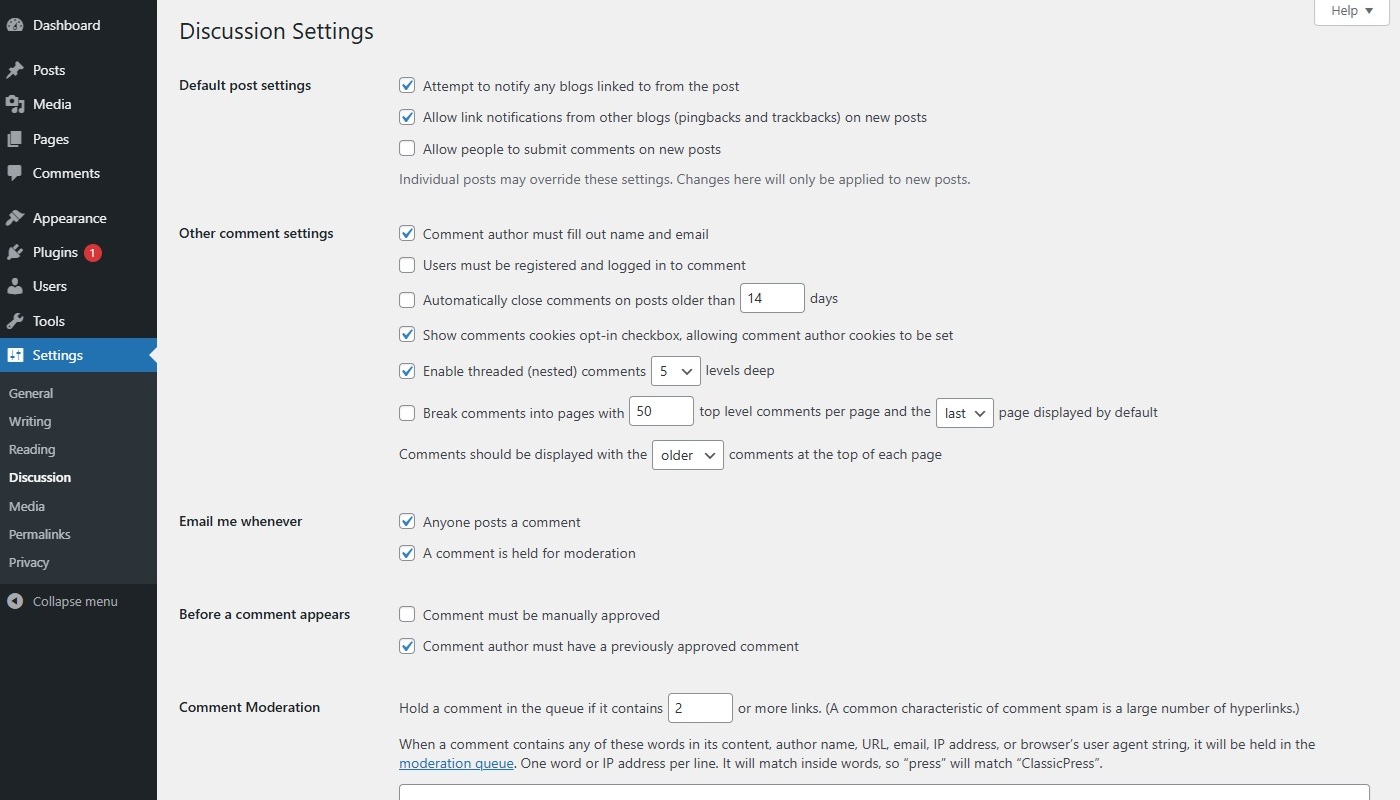
Discussion SettingsLink to this section
Default post settingsLink to this section
These settings may be overridden for individual posts.
- Attempt to notify any blogs linked to from the post – If you check this box, ClassicPress will send out a ping to a site or post you have linked to in your post. Your mention of their site or posts will show up in the comment section of their site, if that site allows pingbacks. The notification occurs during the process of publishing your post to the internet. A post with many hyperlinks will slow the posting process as ClassicPress contacts all of the sites before the post is published.
- Allow link notifications from other blogs (pingbacks and trackbacks) on new posts – Check this box so ClassicPress accepts or declines the pings from other sites which may reference your site or a post on your site. If this box is checked, pingbacks and trackbacks will appear in the comments section of your posts.
- Allow people to submit comments on new posts – Check this box if you wish to allow comments to your posts. Remember that this can be overridden for individual posts. Comments can also be controlled by making a post PRIVATE, which requires the appropriate password before a comment is allowed. If you don’t wish to allow comments uncheck this setting.
Other comment settingsLink to this section
- Comment author must fill out name and email – Check this box as a way to force spammers to do a bit of extra work. In reality, the name and email address are not verified in any way prior to the comment being submitted. Most legitimate commenters are more than willing to fill out a name and email address.
- Users must be registered and logged in to comment – If this box is checked, only logged in registered users will be able to write comments on your site.
- Automatically close comments on posts older than [X] days – Check this box and enter a number of days. After that period, ClassicPress will disable the comment form on any post older than X days, preventing new comments while leaving all previously approved comments visible.
- Show comments cookies opt-in checkbox, allowing comment author cookies to be set – This option adds an opt-in checkbox to your comment form that visitors must tick before ClassicPress will save their name, email, and site in a cookie for future comments, giving commenters explicit consent rather than setting those cookies automatically, which helps with privacy compliance (e.g. GDPR).
- Enable threaded (nested) comments [X] levels deep – Check this box to enable threaded comments, then from the select box, select the number of levels deep (maximum of 10 levels) you will allow for nested comments. Note that themes need to be specially coded to properly display threaded comments.
- Break comments into pages with [X] top level comments per page and the [last/first] page displayed by default.
Comments should be displayed with the [older/newer] comments at the top of each page – Check this box to cause comments to display in a paginated format with the specified number of comments per page. In addition, specify if the pages should be ordered “first to last” or “last to first”, and within each page, whether the oldest, or newest, comment is to be displayed first.
Email me wheneverLink to this section
These two settings give you control of when authors and administrators receive notification that comments have been made, or that comments are held for moderation. Note that the use of “me” refers to either a post author or the administrator.
- Anyone posts a comment – Check this box so that every single comment posted will generate an email to the author of that post. Be warned that if your posts receive a large number of comments, post authors may receive a lot of emails.
- A comment is held for moderation – Check this box if you want ClassicPress to send a notification that a comment is being held for moderation. The email notification is sent to the email address listed in the Administration > Settings > General Screen. That way the administrator of the site can review what comments are being allowed or denied.
Before a comment appearsLink to this section
These settings provide you even more control over when and how comments are posted.
- Comment must be manually approved – Check this box to force comments to be approved by a site user or owner having the proper role to approve comments, even if the comments appear to be spam. See the Comment Moderation options below regarding spam.
- Comment author must have a previously approved comment – Check this box to insure comments are only posted if the comment author’s email address matches the address of a previously approved comment, otherwise, the comment is held for moderation.
Comment ModerationLink to this section
In the Comment Moderation section you specify these options to help you deal with Comment Spam.
- Hold a comment in the queue if it contains [X] or more links – A common characteristic of comment spam is multiple hyperlinks in its content. You can enter a number in this box to tell ClassicPress how many links you allow in a comment before holding it for moderation.
- When a comment contains any of these words in its content, author name, URL, email, IP address, or browser’s user agent string, it will be held in the moderation queue – In this text box you can add your own spam words which will filter the comments when posted. One word or IP per line. It will match inside words, so “press” will match “ClassicPress”.
Disallowed Comment KeysLink to this section
When a comment contains any of these words in its content, author name, URL, email, IP address or browser’s user-agent string, it will be marked as spam. One word or IP per line. It will match inside words, so “press” will match “ClassicPress”. This text box acts the same as “When a comment contains any of these words…”, except comments which match these words will be deleted without warning.
AvatarsLink to this section
An avatar is an image that follows you from site to site appearing beside your name when you comment on avatar enabled sites. Here you can enable the display of avatars for people who comment on your site. By default ClassicPress uses Gravatars — short for Globally Recognized Avatars — for the pictures that show up next to comments. The avatar size on the public facing site may vary by theme or plugin. Avatars are disabled by default on new ClassicPress installs.