
About your ClassicPress siteLink to this section
There are two parts of your ClassicPress site to backup: Database and Files.
Your files are located in your ClassicPress directory on the web server and the database is stored in a separate database system (typically MySQL/MariaDB) outside the ClassicPress directory.
FilesLink to this section
Your ClassicPress site consists of the following files:
- ClassicPress core installation
- Plugins
- Themes
- Images and files
- Javascripts, PHP scripts, and other code files
- Additional files
Everything that has anything to do with the look and feel of your site is in a file somewhere and needs to be backed up. Additionally, you must back up all of your files in your ClassicPress media library.
DatabaseLink to this section
Your ClassicPress database contains every page, post and comment you have on your site. If your database gets erased or corrupted, you stand to lose everything you have written. There are many reasons why this could happen, and not all are things you can control.
Backup your siteLink to this section
By now you probably agree that making a (recurring) backup of your site is a wise thing to do. There are various ways to make a single or a recurring backup of your site. For example, you could let a plugin do a backup for you, do a manual backup, or create a backup via your hosting control panel. A general rule is to always store a backup in a secure location, which is not the same server as your site is on. This way you stay in control over your own content.
Backup with pluginLink to this section
There are (WordPress) plugins to backup your entire site from within your site’s administration. This is the easiest way of creating a backup.
Plugins that are tested with ClassicPress are:
Note that you may run into server side or plugin limitations while creating a backup or restore. If those limitations are in place, you will be informed while doing this. So whether or not the backup or restore succeeds depends on your host and the plugin that is being used.
The plugins below come with a variety of settings. For this document we will only describe the backup and the restore process. Consult their documentation for explanation about all available settings. Besides this you should always use the same plugin for both backup as restore.
UpdraftPlus
For this document we have installed the free version of the plugin.
The UpdraftPlus plugin lets you make a local backup of your database, media files, plugins and themes, or a backup on a remote storage location. The free version of the plugin offers a few remote storage locations to choose from, such as Dropbox, FTP and Google Drive. They offer additional storage locations in the premium version of the plugin.
After installing and activating the plugin navigate to “UpdraftPlus” in your administration. You will be prompted to set some general settings, such as a backup schedule and a default storage location.
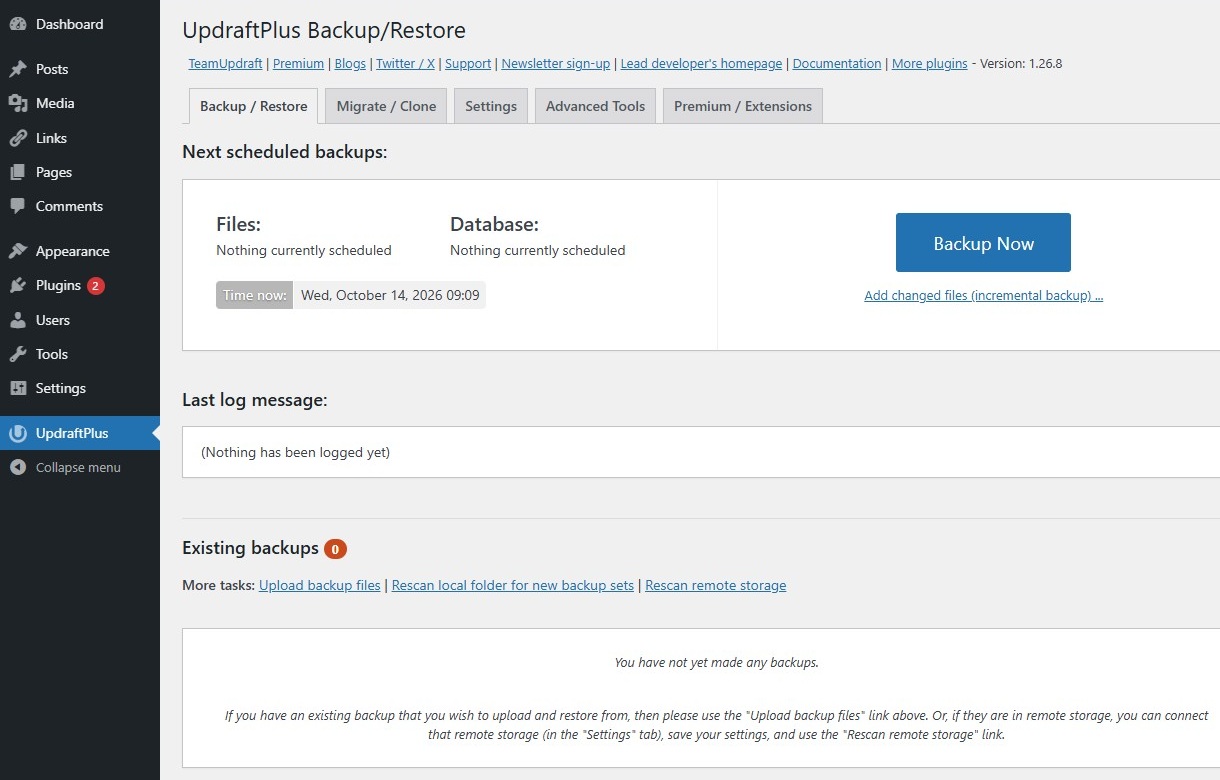
To make a backup click the blue “Backup Now” button. The modal below opens, which let you choose where to store the backup and which part(s) of the site to backup. If you want to store your backup remotely, but you didn’t set a remote storage location yet (like below) you will be prompted to do so.
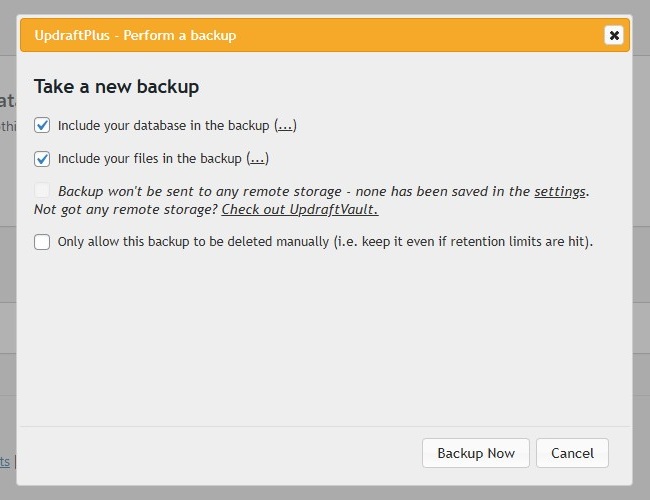
The backup process may take some time, depending on the size of your site.
As soon as the backup is finished, it will be listed underneath the “Existing backups” heading. If your storage location is local, the backup files are stored in the wp-content > updraft folder of your ClassicPress installation. Note the different packages for Database, Plugins, Themes, etc. Splitting your backup into multiple files makes it easy to backup or restore specific parts of your site, such as the Plugins folder only. You can also download the backup to your computer, if you prefer to store it there.
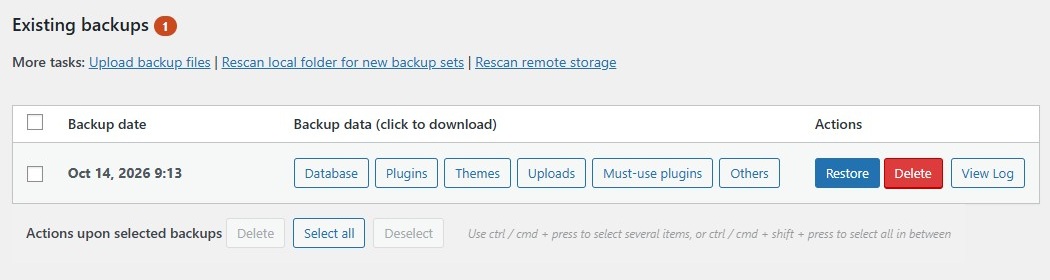
To restore your backup with UpdraftPlus navigate to “UpdraftPlus” in your administration. The “Existing backups” will list the existing backup files. Those files are either stored in the wp-content > updraft folder of your ClassicPress installation, or at the remote location that you’ve previously choosen.
You could also upload a zipped backup file from your computer. But if you run into server side limitations, then upload the backup file to the wp-content > updraft folder of your ClassicPress installation, by using FTP. For this you need an FTP program (such as FileZilla). Alternatively it may also by possible to upload the backup file via the file manager of your hosting control panel. Once uploaded to the appropriate folder it will be listed underneath the “Existing backups” heading.
Final step is to run the restore process. For more information about backup restoring with UpdraftPlus we refer to this article.
If you run into an issue or have a question while using the plugin, consult the UpdraftPlus documentation.
Backuply
For this document we have installed the free version of the plugin.
The Backuply plugin lets you make a local backup of your entire ClassicPress installation, or a backup on a remote storage location. The free version of the plugin offers 2 remote storage locations to choose from, FTP and Backuply Cloud. They offer additional storage locations in the premium version of the plugin.
Main difference between this plugin and the other 2 is that it will backup your entire ClassicPress installation. This also includes your ClassicPress core installation files, besides your database, media files, plugins and themes. Though it does let you exlude certain non-core folders via the Settings tab of the plugin.
After installing and activating the plugin navigate to “Backuply” in your administration.
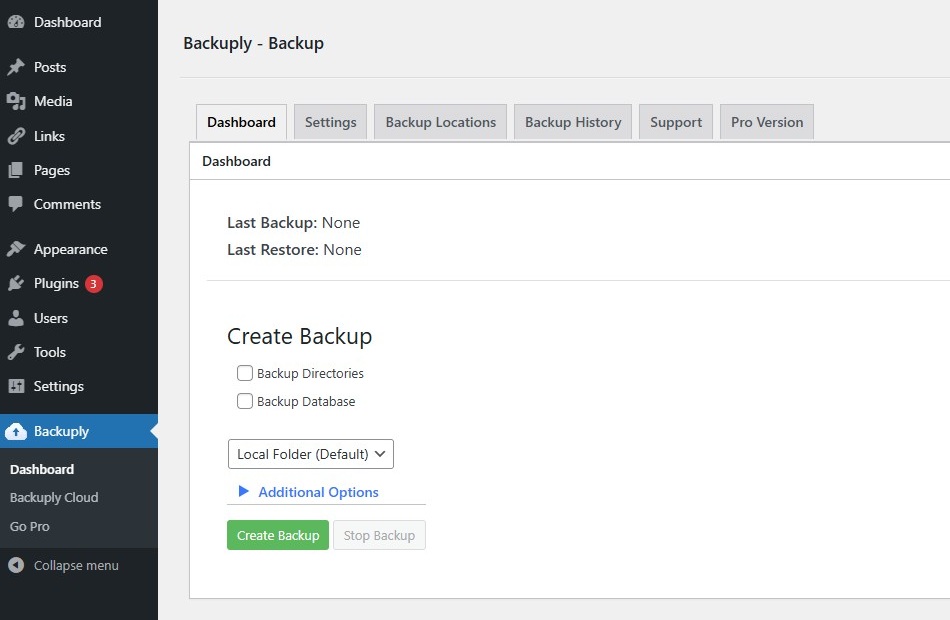
Choose the parts to include in your backup and click the green “Create Backup” button. A modal opens, informing you about the progress of the backup process.
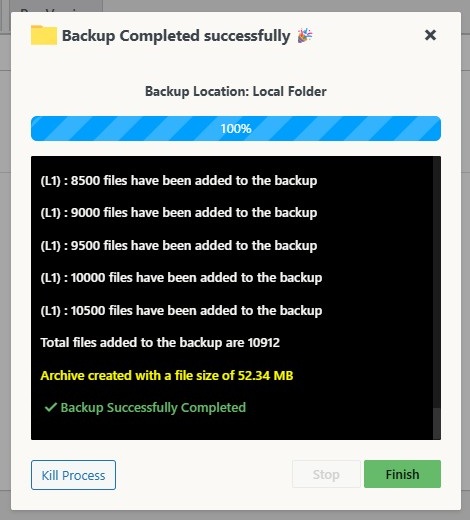
The backup process may take some time, depending on the size of your site.
As soon as the backup is finished, it will be listed under the “Backup History” tab. If your storage location is local, the backup file is stored in the wp-content > backuply folder of your ClassicPress installation. You can also download the backup to your computer, if you prefer to store it there.
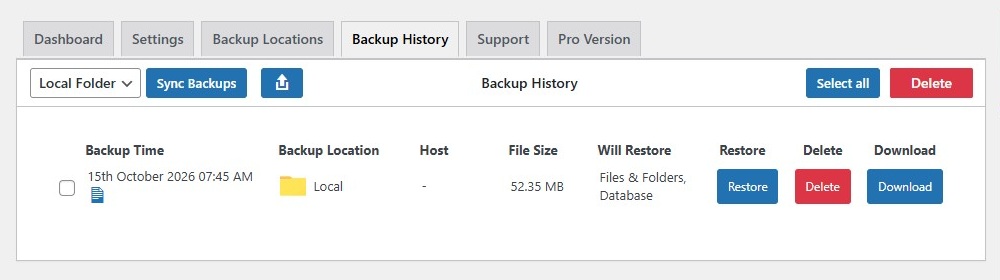
To restore your backup with Backuply navigate to “Backuply” in your administration. You could then click the “Backup History” tab, that will list the existing backup files. Those files are either stored in the wp-content > backuply folder of your ClassicPress installation, or at the remote location that you’ve previously choosen.
You could also upload a zipped backup file from your computer. But if you run into server side limitations, then upload the backup file to the wp-content > backuply folder of your ClassicPress installation, by using FTP. For this you need an FTP program (such as FileZilla). Alternatively it may also by possible to upload the backup file via the file manager of your hosting control panel. Once uploaded to the appropriate folder it will be listed under the “Backup History” tab.
Final step is to run the restore process.
Restoring a backup will overwrite your entire ClassicPress installation. For more information about backup restoring with Backuply we refer to this article.
If you run into an issue or have a question while using the plugin, consult the Backuply documentation.
All-in-One WP Migration and Backup
For this document we have installed the free version of the plugin.
The free version of the All-in-One WP Migration and Backup plugin lets you make a local backup of your database, media files, plugins and themes. You wil need the premium version to store your backup remotely, such as in Dropbox, FTP and Google Drive.
After installing and activating the plugin navigate to “All-in-One WP Migration” in your administration.
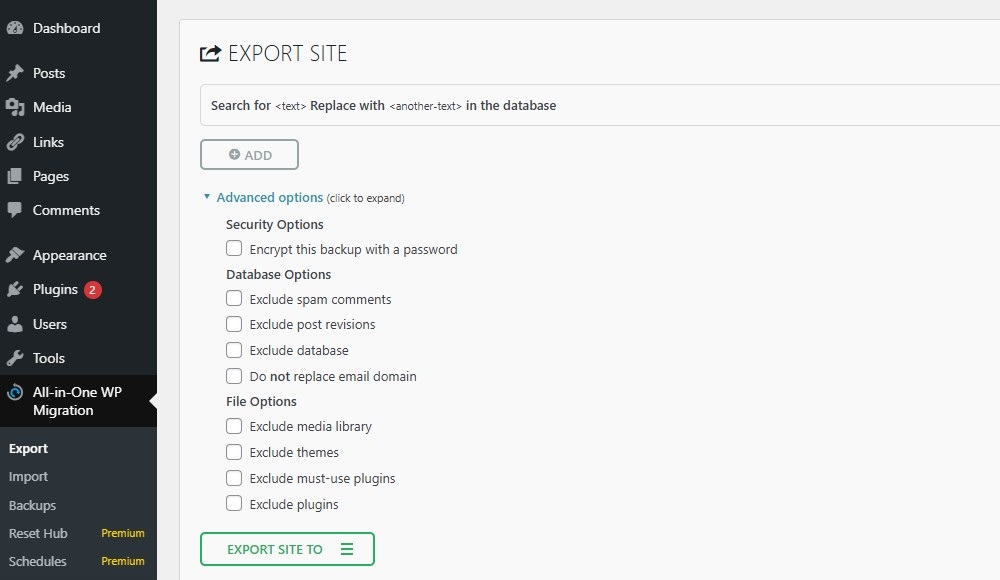
Via the “Advanced options” you can choose which part(s) of the site to exclude from the backup. Then select “File” from the green “Export site to” button. A modal opens informing you about the progress of the backup process.
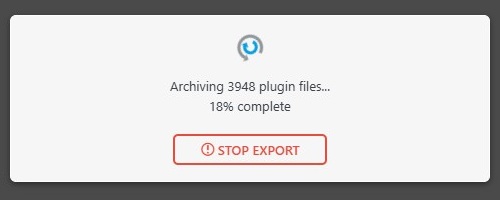
The backup process may take some time, depending on the size of your site.
If the backup proces succeeds, a button appears that lets you download the backup to your computer. The backup file will be stored in the wp-content > ai1wm-backups folder of your ClassicPress installation. The backup is a single .wpress file that holds the different folders of your site.
To restore your backup with All-in-One WP Migration and Backup navigate to “All-in-One WP Migration” in your administration. You could then click the “Import” tab and upload the .wpress backup file from your computer.
Final step is to run the restore process.
The “Backups” tab may also list existing backup files, that are stored in the wp-content > ai1wm-backups folder of your ClassicPress installation. But with the free version of the plugin it’s not possible to restore a backup from this screen.
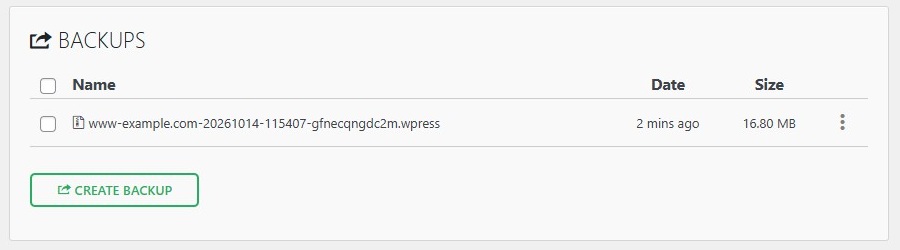
Note that the free version of the plugin has a maximum export and import file size limit of 512 MB. And because the plugin by default uses the upload limit set by your host, there’s a chance you cannot upload the .wpress file from your computer to your ClassicPress installation, because of its size.
If your site is running on an Apache server, you can try to bypass the limits set by your host, by adding the values below to your .htaccess file. This file is located in the main folder of your ClassicPress instalation. Add the values after # END ClassicPress and save the file. You can check the result via the “Import” tab of the plugin, see the value after Your host restricts uploads to.
This fix will not always work, because your host could also force their own limits.
php_value upload_max_filesize 512M
php_value post_max_size 512M
php_value memory_limit 256M
php_value max_execution_time 300
php_value max_input_time 300
Overall the free version of the “All-in-One WP Migration and Backup” plugin is less suitable for our purpose.
If you run into an issue or have a question while using the plugin, consult the All-in-One WP Migration and Backup documentation.
Manual backupLink to this section
If you run into server side or plugin limitations, you can consider a (more or less) manual backup and restore.
For this you need an FTP program (such as FileZilla) to transfer all of your ClassicPress files and a (WordPress) plugin such as UpdraftPlus or All-in-One WP Migration and Backup to manage your database. Note that you should always use the same plugin for both backup as restore.
These steps are essentially the same as doing a site migration.
To make a backup:
- Download the wp-content folder (including subdirectories) to your computer via FTP.
Depending on the size of this folder this may take a while. - Install one of the plugins from above and export your database.
- Done.
To restore a backup:
- It’s best to start with a new (clean) ClassicPress installation.
- Delete the existing wp-content folder (including subdirectories) from your server via FTP (or via your hosting control panel).
- Upload the wp-content folder (including subdirectories) via FTP to your server.
Depending on the size of this folder this may take a while. - Install one of the plugins from above and import your database.
This will overwrite the existing database of the new ClassicPress installation. - Done.
You could also export and import your database without a plugin. This could be done via certain hosting control panels, or with a database program such as phpMyAdmin. We will not elaborate on that, as these more technical options go beyond the purpose of this user guide.
Ask your hostLink to this section
If you are reluctant to do a backup yourself, you could ask your host to do this for you, like each week or month. Check with your host to find out what services and programs they provide.
Hosts may also provide backup and restore tools. Hosting control panels like cPanel, DirectAdmin and Plesk may have tools for this. In order to use them properly it’s recommended to have some experience with this.
Restore backup in hacked siteLink to this section
If your site is being hacked, you obviously want to fix that. This could be done by restoring a backup from an earlier date. But if you are uncertain when the hack took place, we advice you not to restore a backup before contacting your host. In most cases your host can determine when the hack took place, by checking the server error logs, so that you or the host can restore a clean backup.
ClassicPress Migration PluginLink to this section
Do you want to create a backup for migrating your current site from WordPress to ClassicPress? For this migration you’ll need the ClassicPress Migration Plugin. The Migration Plugin can also be used to migrate your site from ClassicPress to WordPress and between different versions of ClassicPress.