
Widgets ScreenLink to this section
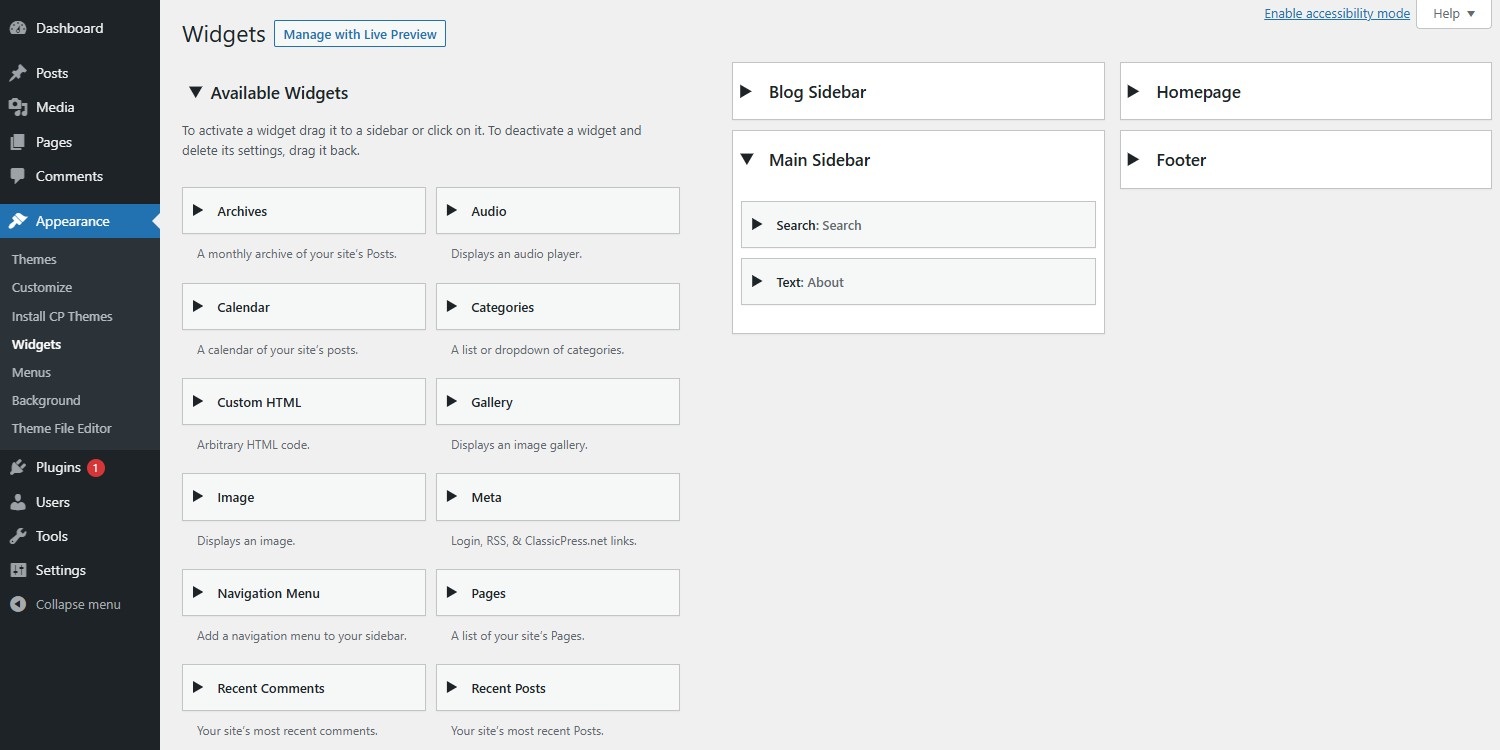
The Wigets Screen is accessible from the administration screen > Appearance > Widgets. You could also manage widgets from within the Customizer.
Widgets add content and functionality to the widget area. The widget area is a pre-defined area by the theme, typically located in the sidebar or footer, but varies from theme to theme. ClassicPress comes with a variety of widgets, but plugins may add their own widgets as well. Most widgets offer customization features.
Adding widgetsLink to this section
- Choose a widget and either drag it to the sidebar where you wish it to appear, or click the widget, select a destination widget area (if your theme has more than one), and click the Add Widget button.
- Once in place the widget’s interface opens, so you are able to customize its features. Click Save to submit your changes.
- You could repeat this if you’re adding multiple widgets.
- To arrange the widgets within the widget area, click and drag them into place.
- To customize the features of existing widgets, click the arrow in the upper left corner to expand the widget’s interface.
- To remove a widget, click Delete.
- Preview the site. Depending on your theme you should find that any “default” sidebar elements are gone and only the new addition is visible.
ClassicPress widgetsLink to this section
ClassicPress comes with the following widgets:
- Calendar – Displays a calendar of the current month. Dates appear as links if there are posts for that day.
- Categories – Displays a list or select box of post categories.
- Custom Menu – Displays a menu from the Appearance > Menus screen.
- Gallery – Lets your create and display an image gallery.
- HTML – Used to enter HTML code.
- Image – Displays an image from the media library.
- Links – Display links from the Link Manager. Manage your links via the administration screen > Links.
This requires the Link Manager to be enabled via Settings > General. - Meta – Displays links to meta functions such as Register, Site Admin, Login/out, Posts RSS, Comments RSS, and ClassicPress.net.
- Pages – Displays a link to each Page.
- Recent Comments – Displays a list of the blog’s most recent approved comments.
- Recent Posts – Displays list of the blog’s most recent posts.
- RSS – Displays an RSS Feed.
- Search – Displays a search form to search your site.
- Tag Cloud – Displays a list of the site’s top used tags in a tag cloud.
- Text – Used to enter plain text. You can also include an image from the media library.
- Video – Displays a video from the media library or from providers such as YouTube.
If desired you could add multiple instances of these widgets to your various widget areas. And, as mentioned above, plugins may add their own widgets.