
The Profile Screen is accessible from both the administration screen > Users > Profile and by clicking on your name link in the toolbar at the top of your screen. Here you can specify your name and how it will be displayed on your site, your email address (for administrative purposes), other personal information, and personal options.
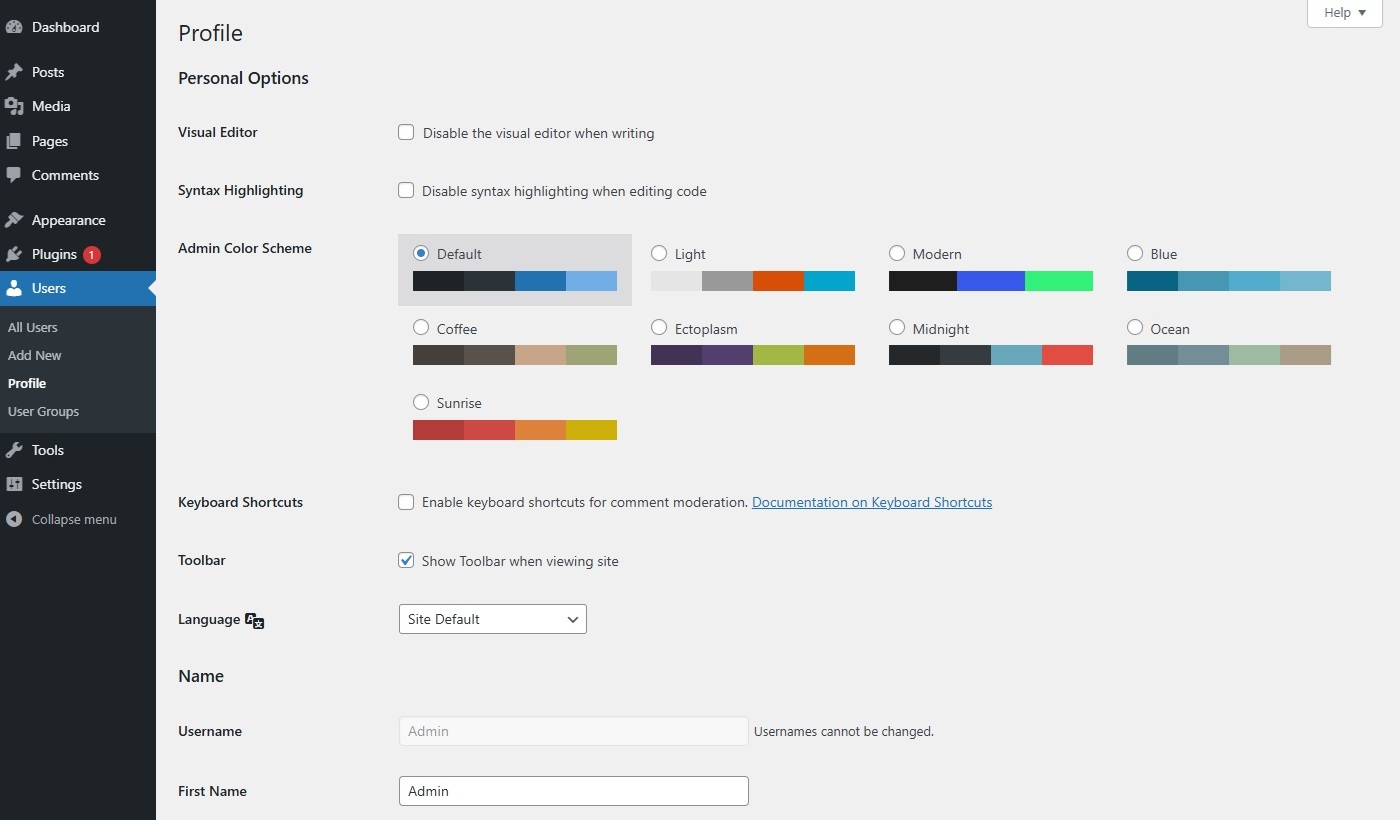
Profile OptionsLink to this section
The only pieces of information ClassicPress requires you to include in your profile are your email address and a nickname. It should be noted that ClassicPress requires your email address only for your site’s administration purposes. The email address is never sent to any other site, and it is never displayed on the public facing site (unless you put it there manually). Only the other registered users of your site have access to the email address you provide. Also, remember that each user’s email address must be unique. All of the other personal information asked for here is optional.
Personal OptionsLink to this section
- Visual Editor – Checking this box disables the visual editor when writing, and uses the plain HTML editor.
- Syntax Highlighting – Checking this box disable syntax highlighting when editing code.
- Admin Color Scheme – Check this radio button next to the color scheme desired for the administration screens. The left two colors are menu background colors and the right two are roll-over colors.
- Keyboard Shortcuts – Checking this box enables keyboard shortcuts for comment moderation. Keyboard shortcuts are designed to allow you to rapidly navigate and perform actions on comments. This WordPress Keyboard Shortcuts article describes the various shortcuts in detail.
- Toolbar – Check the box to display the toolbar at the top of your screen when you are viewing your site.
- Language – You can select the language you wish to use while using the administration screen without affecting the language site visitors see.
NameLink to this section
- Username – You cannot edit your username because it is used as your username during the login process. Even an administrator cannot change your username. Usually, no one else ever needs to see your username.
- Role – site administrators are able to set or edit user’s role here. By default these user roles are available:
- Super Admin (multisite only) – somebody with access to the site network administration features and all other features.
- Administrator – somebody who has access to all the administration features within a single site.
- Editor – somebody who can publish and manage posts including the posts of other users.
- Author – somebody who can publish and manage their own posts.
- Contributor – somebody who can write and manage their own posts but cannot publish them.
- Subscriber – somebody who can only manage their profile. This user role is useful if you have a membership site, eCommerce store, or another site where users can register and log in.
- First name – Enter your first name in this text box.
- Last name – Enter your last name in this text box.
- Nickname – Enter the nickname as it is a required for every user. It may be the same as your username or it can be different. If you don’t supply a nickname, then the username will be placed in this field.
- Display name publicly as – Select, from the select box, how your name is cited on your site. This defaults to your first and last name. You can choose from several of the above pieces of information: Nickname, Login name, First name, Last name, “First Last“, or “Last First“. If you prefer “Last First“, insert a comma after your last name in the Last name text box above and choose the last option from this select box.
User GroupsLink to this section
User groups the user is assigned to. This feature lets you organize groups of users, similar to how media files can be grouped into categories. User groups can be managed via Users > User Groups.
Contact InfoLink to this section
- Email – All users are required to list an email address in their respective profiles. The email address must be unique for each user. Your site will use this address to notify you of new comments to your posts and for other administrative purposes. As said above, only other registered users of your site will have access to this email address. It is never sent anywhere.
- Website – Enter your site address.
About YourselfLink to this section
- Biographical Info – Enter a short description or profile of yourself here. This optional information can be displayed by your theme if so configured by the theme author.
- Profile Picture – Your picture in Gravatar is shown here. To change it, visit the Gravatar site.
Account ManagementLink to this section
- New Password – You can click this button to generate a new password for the account. This will show you a new field with the generated password. If you choose to change this password, a checkbox will appear to confirm that you want to use a weak password. You can check this box to confirm that you want to use your own password instead of a secure one.
The strength indicator indicates if the password you entered is Very Weak, Weak, Medium, or Strong (displayed in green). The stronger the password the more secure your login. Hint: The password should be at least seven characters long. To make it stronger, use upper and lower case letters, numbers and symbols like !”?$%^&). - Sessions (Log Out Everywhere Else) – You can click this button to log out of other devices, such as your phone or a public computer.
Application PasswordsLink to this section
Application Passwords are a ClassicPress feature that lets you generate revocable, per-application credentials for programmatic access (for example, a mobile app, an integration, or a script). They are designed to avoid sharing your main account password with third-party tools.