
Note that this screen is only availabe if you’ve disabled the Customizer.
In the Appearance Background Screen, if allowed by your current theme, you can customize the background of your theme by uploading an image or selecting a color to represent the background.
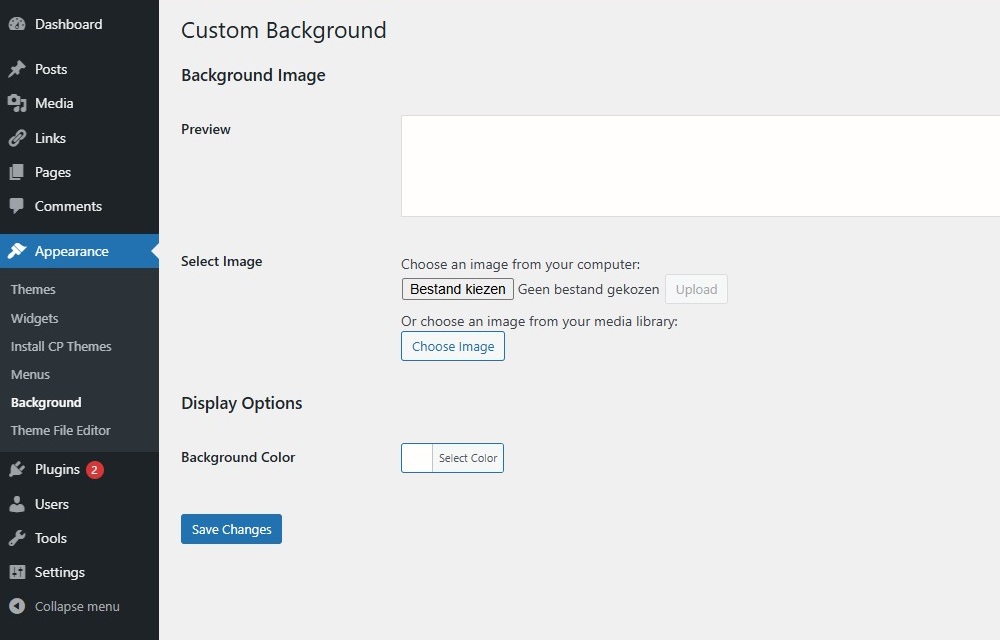
Background ImageLink to this section
- Preview – In this box, the uploaded image, or the selected color is available for previewing.
- Select Image – Choose an image from your computer. Click the browse button to find the image on your local computer, then once the image is selected, click the Upload button to upload the image. At that point the Display Options are exposed.
Display Options
Image Position – You can also select the background image position by clicking on the arrows under Image Position, to be positioned Left, Center, or Right. Clicking on center will align the image to the center of the screen.
Image Size – You can change the Image Size from the select box to Fit to Screen, Fill Screen or keep it Original.
Repeat – Click the checkbox to repeat the background image across the page.
Scroll – Click the checkbox to enable the background image to scroll with the page or display as fixed. - Remove Image – Once an image is uploaded, if the image is no longer desired, use this button to remove the image.
Display OptionsLink to this section
- Background Color – Click the color input. You can either enter a hexadecimal number (e.g. cc0000) representing the color to be displayed as the background of your theme, or from the color picker, click the desired color and the hexadecimal number for that color will be placed in the color input. Click “Default” to restore the initial condition. The background may only be visible on wide displays. A preview of that color is presented near the top of this screen.
Save ChangesLink to this section
Click the “Save Changes” button to ensure any changes you have made to your background settings are saved to your database. Once you click the button, a confirmation text box will appear at the top of the page telling you your settings have been saved.