
This requires your plugin to be listed in the ClassicPress Directory and the ClassicPress Directory Integration plugin to be installed and active.
While updating ClassicPress plugins you may notice a missing icon at the Updates page.
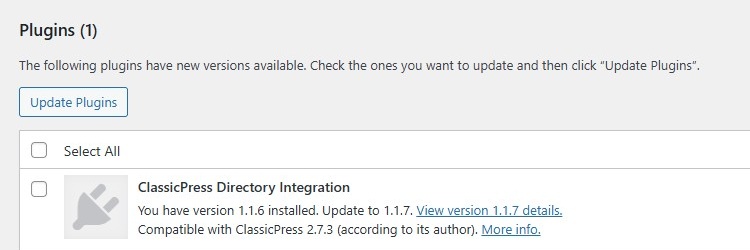
And when clicking the “View version…” link there’s no banner on top of the modal either.

Fortunately this is something that can be fixed easily, because the ClassicPress Directory Integration plugin will look for the appropriate images inside your ClassicPress plugin.
In order to support this, follow these steps:
- Create a folder called /images inside the main folder of your plugin.
- Include an icon with size 128 x 128 px and save it as “icon-128.png”.
- Include a banner with size 772 x 250 px (width x height) and save it as “banner-772×250.png”.
To support High-DPI (Retina) icons and banners as well:
- Include an icon with size 256 x 256 px and save it as “icon-256.png”.
- Include a banner with size 1544 x 500 px (width x height) and save it as “banner-1544×500.png”.
When visiting the dashboard of your site again, the Updates page will look like this:
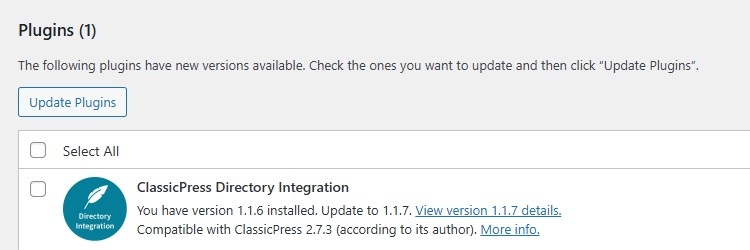
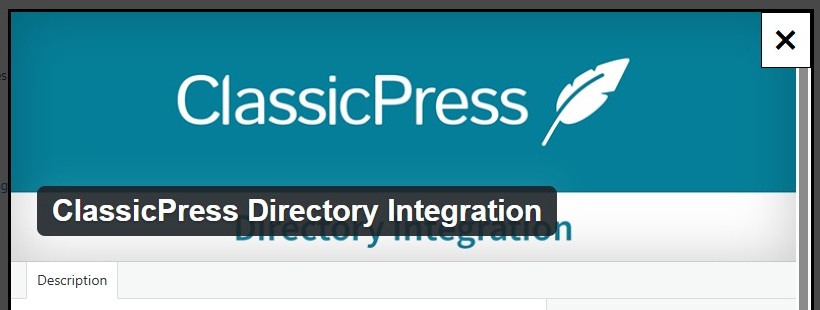
And the modal will display your banner:
ThemesLink to this section
You may also want to know how to support this for ClassicPress themes. The ClassicPress Directory Integration plugin will use the theme screenshot at the Updates page. This image is included in the main folder of most themes.