
- What is a child theme?
- The Tutorial
- Step 1 – Navigate to themes folder
- Step 2 – Create a new folder
- Step 3 – Create CSS-file named style
- Step 4 – Add headers
- Step 5 – Create PHP-file named functions
- Step 6 – Enqueue parent theme CSS
- Step 7 – Activate child theme
- Step 8 – Ready for use
- How do I start making changes?
- Need help?
- Credits

When performing changes to your theme, like changing up the template, adding functionality, or adding CSS, it is often advised to use a child theme. But how do you make a child theme? What even is a child theme? Why do you need this? All questions that people new to this level of ClassicPress will come up against. This tutorial will do its best to answer these questions in the easiest way possible.
What is a child theme?Link to this section
Simply said, a child theme is a theme that is dependent on another theme. The theme that the child theme is dependent on is called the parent theme. The child theme will pull its code from the parent theme to fill in any gaps. This will make it appear as if you’re using the parent theme.
So why use a child theme?Link to this section
In the child theme you can overwrite templates, functions and CSS from the parent theme without actually changing the parent theme. This means that when you update the parent theme, these changes will remain in effect. So, you can safely make all the template, styling and functionality changes to a theme that you want, without having updates overwrite your efforts.
Note: If you only want to make some minor changes to the styling of your theme, consider using the ‘Additional CSS’ page of the Customizer instead. Less work, same result.
How do I make a child theme?Link to this section
By now you should be convinced that if you are going to make changes to a theme, you should get a child theme. So let’s make one step by step.
What do I need?Link to this section
- Access to your ClassicPress files, either through FTP or a file manager.
- A parent theme of your choosing. For this tutorial we will use Twenty Seventeen.
- A code/text editor.
The TutorialLink to this section
For this tutorial we use the DirectAdmin Web Control Panel. With this tool we can create the child theme as well. The steps below are similar when using an FTP application, like FileZilla.
Obviously there are other ways to create and install a child theme.
For example, you can run and develop ClassicPress locally on your own device. And use a code/text editor like Notepad++ to create and edit your files.
If you have created a child theme outside your ClassicPress install and want to use it, create a ZIP file of your child theme and install it like any other theme, via Appearance > Themes > Add New. Click the Upload Theme button on top and upload the ZIP file to your ClassicPress install. If you for some reason forgot to install the parent theme first, you will be prompted to do so.
Step 1 – Navigate to themes folderLink to this section
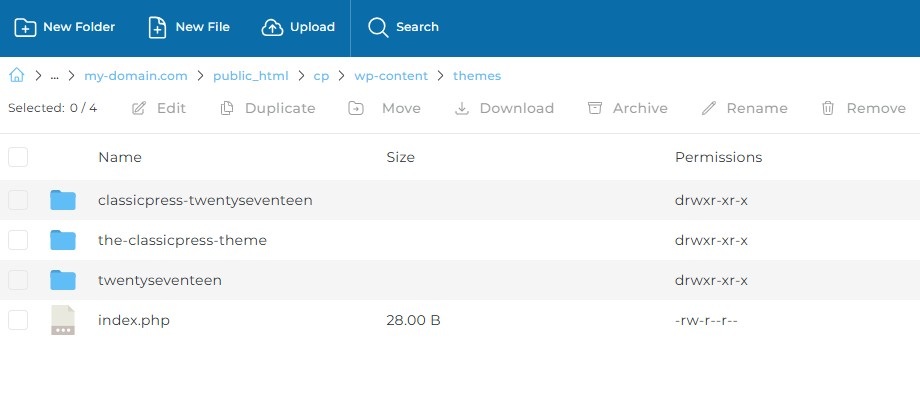
Open your ClassicPress installation in FTP or a file manager and navigate to wp-content > themes.
Step 2 – Create a new folderLink to this section
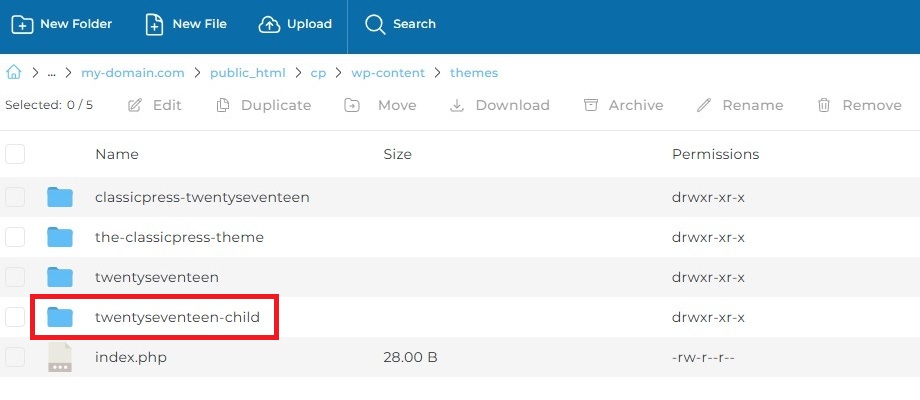
Create a new folder and access it. The name does not really matter, but for future reference, it is easiest to name this folder -child.
So in this case it will be twentyseventeen-child.
Step 3 – Create CSS-file named styleLink to this section
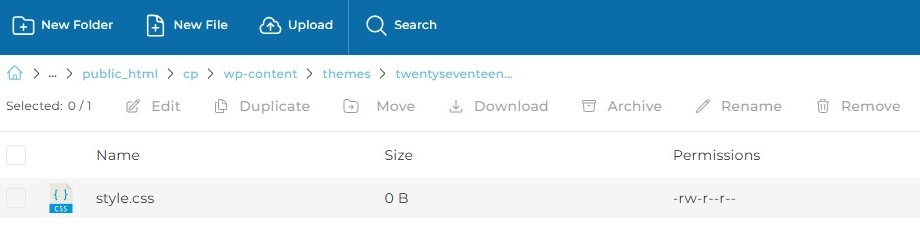
Create a file named style.css in the new folder and open it in an editor.
Step 4 – Add headersLink to this section
Next we are going to create some theme headers. Like below:
- Theme Name => Your unique child theme name.
- Description => A short description of the child theme.
- Version => Version of the child theme.
- Author => Your name.
- Author URI => Your domain, for example your page at the CP Plugin Directory or GitHub.
- Template => The folder name of your parent theme, in this case twentyseventeen.
- Text Domain => The folder name of your child theme, in this case twentyseventeen-child.
Note: Only Theme Name and Template are required, the rest is optional.
Now add these headers to the style.css you created like below and save the file.
/*
Theme Name:  Twenty Seventeen Child
Description: Example of a Child theme for Twenty Seventeen
Version:     1.0.0
Author:      John Doe
Author URI:  https://directory.classicpress.net/developer/john-doe/
Template:    twentyseventeen
Text Domain: twentyseventeen-child
*/

/* You can add custom CSS below */
This will result into:

Step 5 – Create PHP-file named functionsLink to this section
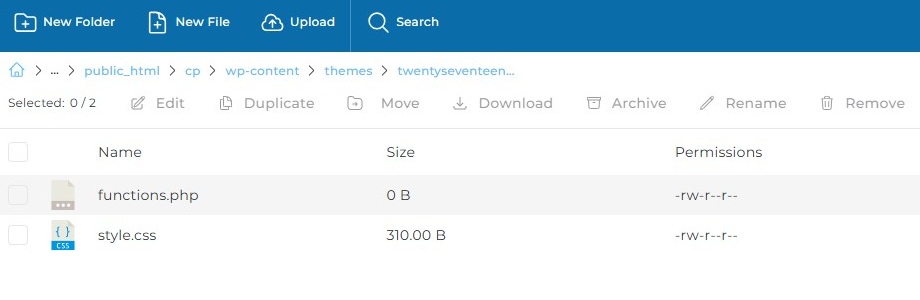
Create a file named functions.php in the child theme folder and open it in an editor.
Step 6 – Enqueue parent theme CSSLink to this section
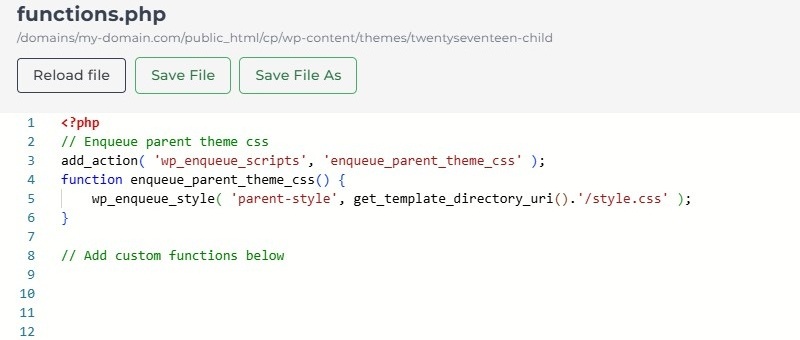
Add the following code to the functions.php file and save it. This will include the styling of the parent theme.
(don’t forget to start with the opening PHP-tag)
// Enqueue parent theme css
add_action( 'wp_enqueue_scripts', 'enqueue_parent_theme_css' );
function enqueue_parent_theme_css() {
	wp_enqueue_style( 'parent-style', get_template_directory_uri().'/style.css' );
}

// Add custom functions below
This will result into:
Step 7 – Activate child themeLink to this section
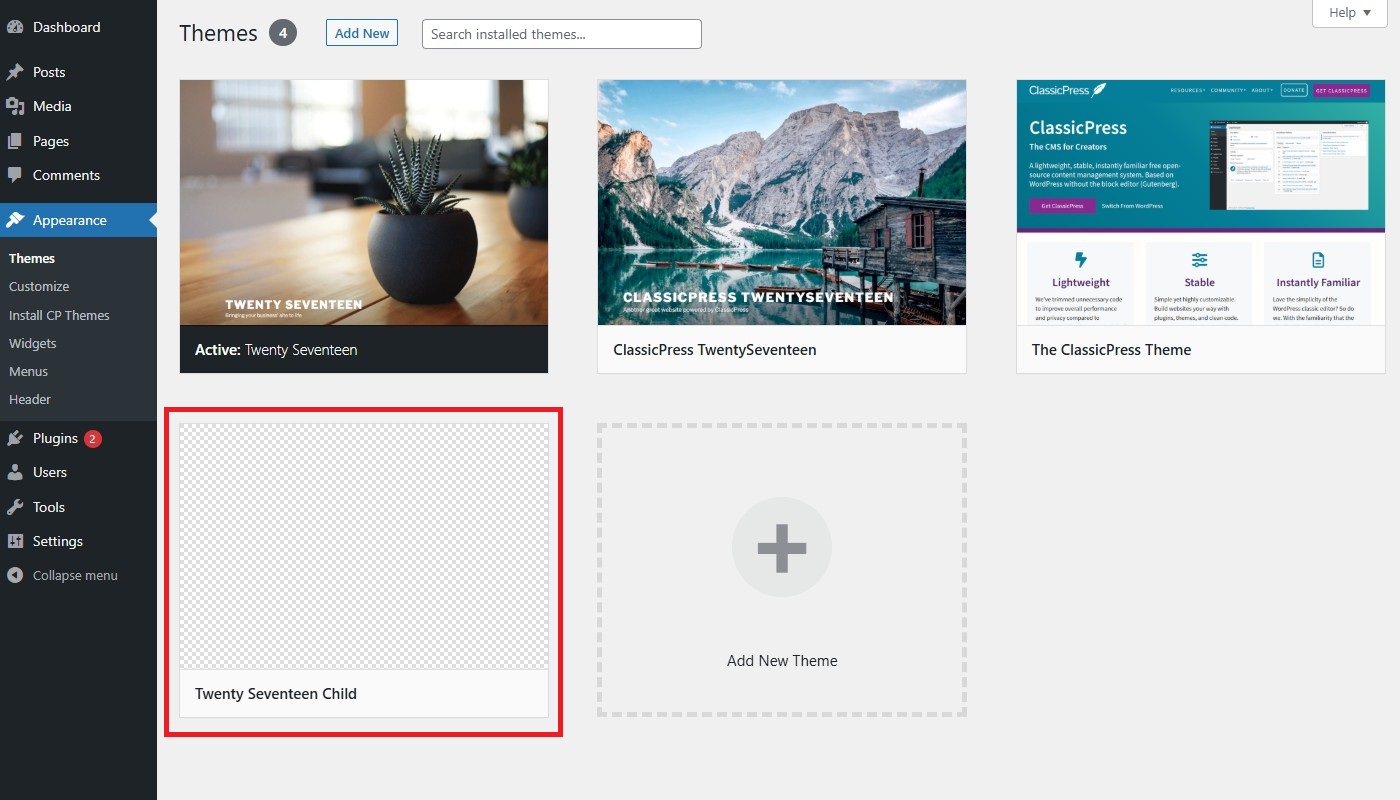
Go to your ClassicPress admin area and go to Themes. When here, ‘Activate’ the child theme.
Step 8 – Ready for useLink to this section
Once activated your child theme is ready for use!
As you can see above, the child theme doesn’t have its own screenshot yet. But you can easily add one. The size of the screenshot should be 1200×900 px, named screenshot.png, and included in the main child theme folder.
How do I start making changes?Link to this section
Now that your child theme is ready for use, you obviously want to start making changes. As mentioned before, there are three main uses for your child theme: change styling, add functionality and edit templates. Doing these three things is easy!
Changing stylesLink to this section
To overwrite your theme’s CSS, simply go to the style.css file you made during the creation of this child theme. Add the CSS changes you want to this file below /* You can add custom CSS below */ and save them.
Note: The child theme styles are rendered after the parent, so anything you add here will overwrite the specifications made in the parent’s style.css file.
Adding functionalityLink to this section
Often when you are trying to add functionality through snippets, you will be instructed to add them to your theme’s functions.php. It works the same way with a child theme. You can add these snippets or write your own in the functions.php file you made during the creation of this child theme. Just add them below // Add custom functions below and save them.
Editing templatesLink to this section
To edit a template file you must first find the file in your parent theme. For example single.php, sidebar.php, footer.php, etc. When you have found the file you want to edit, make a copy and upload this copy to your child theme. Be careful to keep the URL structure intact! For example, if you found a file in the folder template-parts, make sure it’s also placed in a folder named template-parts in your child theme.
Some plugins also gives you the option to edit their templates in your child theme. An example of this is ClassicCommerce (a fork of WooCommerce). To do this, you go to your plugin folder and look in the templates folder. Copy the file you want to edit. When in your child theme, make a folder with the same name as the plugin’s folder (This folder takes the place of templates in your URL structure) and add the copy of the file you wish to edit to this folder.
Need help?Link to this section
You could always ask for support at the Themes forum page or in the Themes Zulip channel.
CreditsLink to this section
This document is based on a tutorial written by Patrick Klein and posted on the ClassicPress blog.