
The General Settings Screen, the primary interface within the Settings Administration panel, controls several fundamental aspects of your site. It enables you to define your site’s title and location, manage user membership, set the custom login image, customize the calculation and presentation of dates and times, and other site settings.
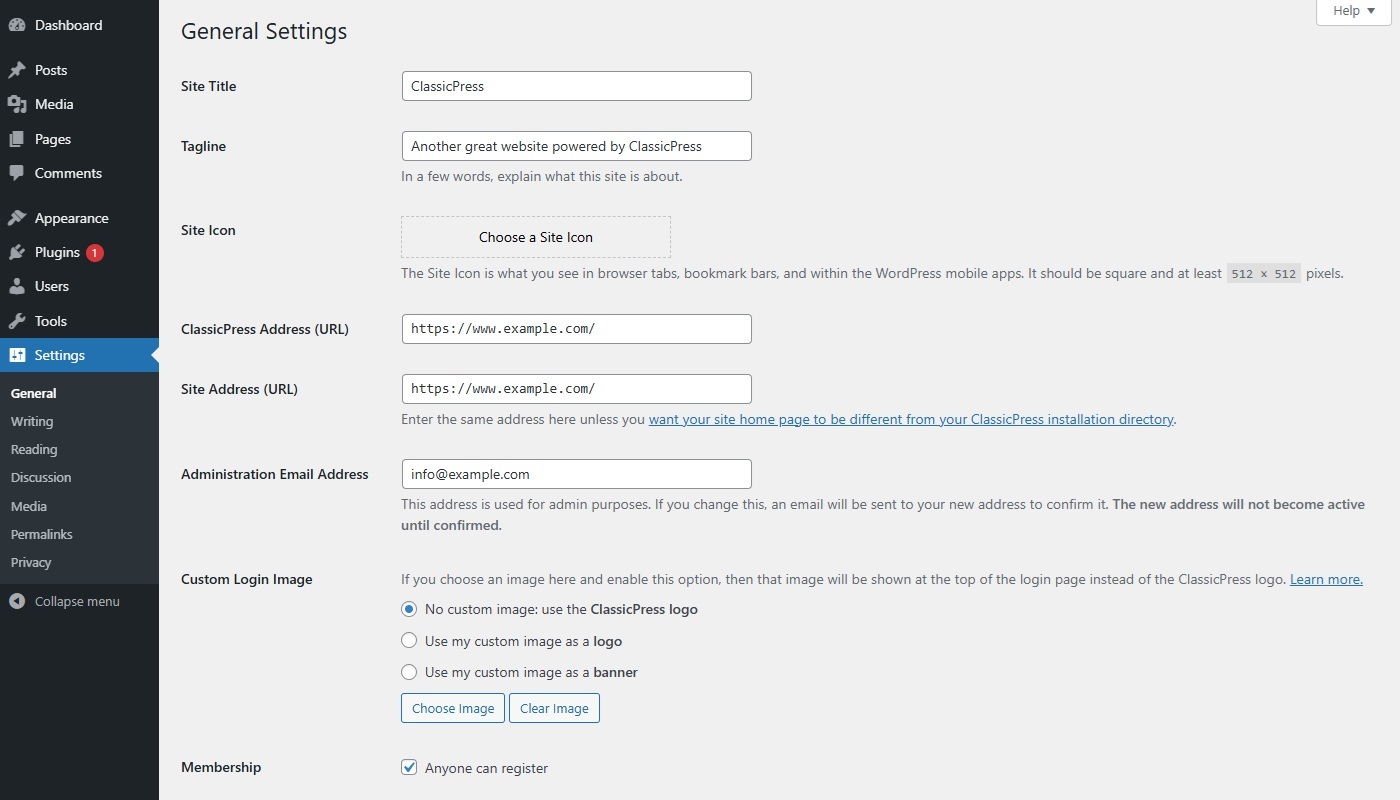
General SettingsLink to this section
Site TitleLink to this section
Input the title of your site (or blog) in the provided space. Most themes will showcase this title at the top of each page and in your reader’s browser title bar. ClassicPress also uses this title as the identifying name for your your syndication feeds.
TaglineLink to this section
Briefly describe the purpose of your site. Here, you can enter your site’s slogan or tagline. A tagline is a concise phrase or sentence that captures the core essence of your site, often incorporating humor or an attention-grabbing element.
ClassicPress Address (URL)Link to this section
Input the complete URL of the directory that houses your ClassicPress core application files, such as wp-config.php, wp-admin, wp-content, and wp-includes.
For instance, if you’ve installed ClassicPress in a /blog directory, your ClassicPress address would be https://example.net/blog (with example.net being your domain).
If you’ve installed ClassicPress in your web root, the address will be the root URL, like https://example.net. ClassicPress will automatically remove a trailing slash (/) if present.
Note that if you’ve set the WP_SITEURL constant in your wp-config.php file, that value will appear in this field, and you won’t be able to modify it from this General Settings screen.
Site Address (URL)Link to this section
This is the same URL as the ClassicPress Address from above, unless you want your site’s home page to be different from your ClassicPress installation directory.
ClassicPress allows you to install it into a subdirectory, but have your site served from the site root.
This WordPress article explains why you may want this and how to do this.
Administration Email AddressLink to this section
Enter the email address ClassicPress should use for site administration notifications.
This address may receive notifications about:
- comment moderation,
- user registration,
- site updates and maintenance,
- recovery mode and fatal errors,
- plugin or theme issues,
- and other administrative events.
Note that the Administration Email Address is different from the email address associated with an individual user account.
Changing this setting does not change the email address used to log in to ClassicPress. User account email addresses can be managed under Users > Profile.
When you change the Administration Email Address, ClassicPress sends a confirmation email to the new address. The new address does not become active until the confirmation link in that email is clicked. Until then, the existing Administration Email Address remains active.
After saving changes, ClassicPress displays a notice indicating that the new email address is pending confirmation.
Custom Login ImageLink to this section
ClassicPress allows you to specify a custom image on the login screen to replace the default ClassicPress logo. See the Custom Login Image article for detailed instructions.
MembershipLink to this section
Check the Anyone can register box if you want anyone to be able to register an account on your site. If your site does not need user accounts, disabling registration entirely is the best solution. Keeping this enabled increases your exposure to automated attacks and spam abuse. That’s why registration is disabled by default.
New User Default RoleLink to this section
This select box allows you to select the default role that is assigned to new users. This default role will be assigned to newly registered members or users added via the Administration > Users screen.
Site LanguageLink to this section
With this select box you can choose the ClassicPress dashboard language. If your language is not installed nor available, you could check the Translating ClassicPress page on how to contribute.
TimezoneLink to this section
From the select box, choose a city in the same timezone as you. For example, under America, select New York if you reside in the Eastern Timezone of the United States that honors daylight savings times. If you can’t identify a city in your timezone, select one of the Manual Offsets that represents the number of hours by which your time differs from Greenwich Mean Time. Click the Save Changes button and the “Universal time” (UTC) and “Local time” will display to confirm the correct timezone was selected.
Date FormatLink to this section
The format in which to display dates on your site. The Date Format setting is intended to be used by plugin/theme developers in displaying dates on your site, but does not control how the date is displayed in the Administrative Screens (e.g. the Posts page).
Time FormatLink to this section
The format in which to display times on your site. The Time Format setting is intended to be used by plugin/theme developers in displaying time on your site, but does not control how the time is displayed in the Administrative Screens (e.g. the Posts page).
Week Starts OnLink to this section
Select your preferred start date for ClassicPress calendars from the select box. Monday is the default setting, meaning a monthly calendar will show Monday in the first column.
Blocks CompatibilityLink to this section
Blocks will not work with ClassicPress. In some cases, however, a theme or plugin may ship with block capability that can be turned on or off. If that capability is turned off, the theme or plugin in question should then work as expected.
In some other cases, the theme or plugin concerned might check for the presence of blocks but does not actually need them to function as expected. For themes and plugins of this sort, ClassicPress comes with a “compatibility mode”.
Compatibility Mode
This can be turned on by going to Settings > General, scrolling down to the Blocks Compatibility option and setting it to On. Then hit Save Changes at the bottom of the page.

Disable EmojisLink to this section
You can disble emoji functionality, removing unnecessary code bloat that adds support for emojis in older browsers. Emojis will still display in modern browsers that have built-in support. It simply removes the extra HTTP requests and JavaScript overhead for browsers that don’t need it.
Disable XML-RPCLink to this section
XML-RPC in ClassicPress is a protocol file (xmlrpc.php) that allows external apps and services to communicate with your site remotely, using HTTP as the transport mechanism and XML for encoding. But the legacy file bypasses standard token authentication, making sites vulnerable to brute-force credential stuffing and DDoS amplification attacks. That’s why XML-RPC is disabled by default (for incoming requests).
Enable Link ManagerLink to this section
ClassicPress allows you to store a set of external links, also known as your blogroll. These links can be put into categories and displayed on your site, usually using widgets. You can activate this by clicking the Link Manager enabled box. You can then manage the links by clicking on “Links” in your administration screen menu.