
The default ClassicPress login screen looks like this:
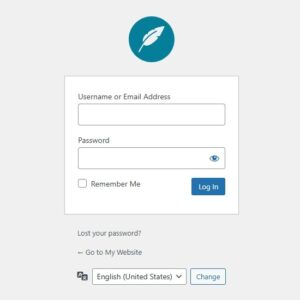
But ClassicPress allows you to specify a custom image on the login screen to replace the default ClassicPress logo. This setting can be accessed in the Settings > General screen.

The default setting uses the ClassicPress logo as before. But, if you want to use a custom image, there are two possible ways for it to be displayed: as a logo or as a banner.
Make sure to save the page once you have chosen your image and set your preferred display option.
Use my custom image as a logoLink to this section
Select the image to be used as your custom logo by clicking the Choose Image button.

You can use an existing image from the media library or upload a new file. Your image will be displayed at a maximum height and width of 100px, so this is the best option for square or portrait-style images.
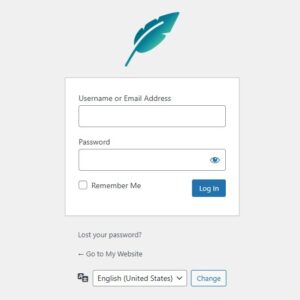
When you’re done, you login screen will look something like this:
Use my custom image as a bannerLink to this section
This setting can be used for custom images that are wider or landscape-style. The image will be displayed at a maximum width of 320px and a maximum height of 240px. We recommend a ratio close to 2:1 or 3:1 for banners.

HINT: If you want to display a larger version of your logo image, select the banner option.
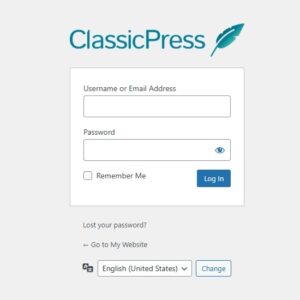
When you’re done, you login screen will look something like this:
Remove imageLink to this section
To remove the image use the Clear Image button and save the page.
