To keep your ClassicPress site secure, you should always update your plugins and themes to the latest version.
When a new version of a plugin or theme is available, an alert bubble is displayed in your ClassicPress administration panel and the corresponding plugin or theme is highlighted on the Plugins and Themes screens.
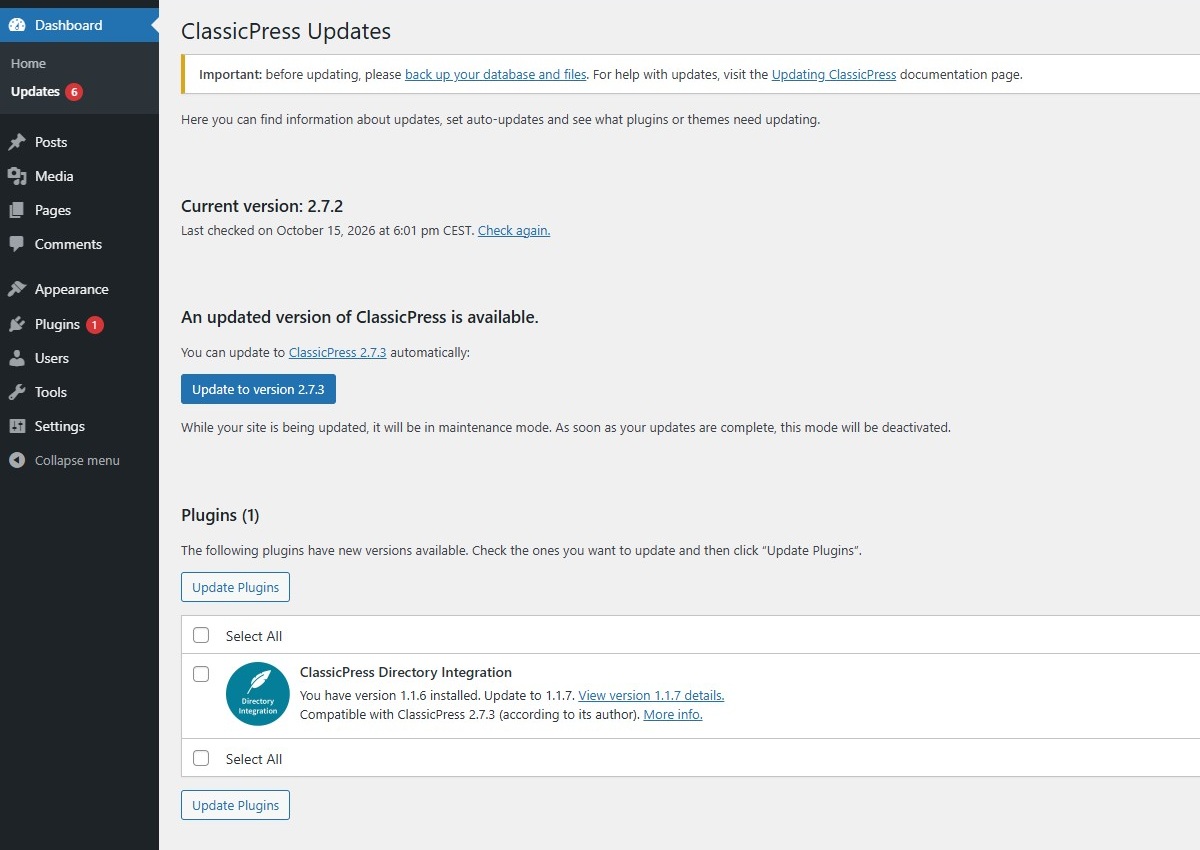
There are several places where you can manage plugin or theme updates:
- ClassicPress, Plugins, Themes and Translations updates can be managed on the Updates Screen.
- Themes updates can be managed on the Appearance Screen.
- Plugins updates can be managed on the Plugins Screen.
But you can also set plugins and themes to update automatically. So you always know your site is running the latest code available.
Before we go into this further, you should know that your host may have disabled the auto-update feature, in favour of their own update mechanism. When this is disabled by your host, you may not see any notices about auto-updating on the screens that are mentioned below.
Enable auto-updates for pluginsLink to this section
Navigate to Plugins Screen. For each plugin, there is an “Automatic update” column with an action link used to enable/disable auto-updates plugin by plugin.

Bulk enable/disable auto-updates
Auto-updates for plugins can be bulk enabled or disabled for several plugins at one time by using the bulk action selector. Select plugins using the checkbox located in the first column of the plugins list table and use the bulk action selector located on the top of the table to enable or disable auto-updates. Then click on the “Apply” button to bulk enable/disable auto-updates for the selected items.
Enable auto-updates for themesLink to this section
On the Appearance Screen, click on a theme thumbnail. In the theme modal, right below the author of the theme, an “Enable auto-updates” action link is available. Click on this action link to enable auto-updates for this specific theme. Once enabled, auto-updates can be disabled at any time, using the same toggle link. Auto-updates for themes have to be enabled/disabled theme by theme.
When do auto-updates happen?Link to this section
By default ClassicPress runs auto-updates twice per day. If updates are available for plugins or themes with auto-updates enabled, the time until the next scheduled update will be displayed below the enable/disable auto-updates action link.

The time until next auto-updates is also displayed in the Dashboard > Updates Screen for both Plugins and Themes.
Email notificationsLink to this section
By default ClassicPress sends email notifications to site owners to inform them that plugins and themes were automatically updated. Or your host sends similar email notifications instead. These are sent when:
- One or more plugins or themes successfully auto-updated
- One or more plugins or themes failed to auto-update
- Some plugins or themes were successfully auto-updated, and some of them failed
Auto-updates are not workingLink to this section
Depending on your server, your installation, or on the plugins your site is running, auto-updates scheduling may not work correctly. Indeed, they rely on ClassicPress Cron tasks to actually perform the update.
To check if ClassicPress Cron tasks are running correctly, go to the Site Health Screen and search for any error message.
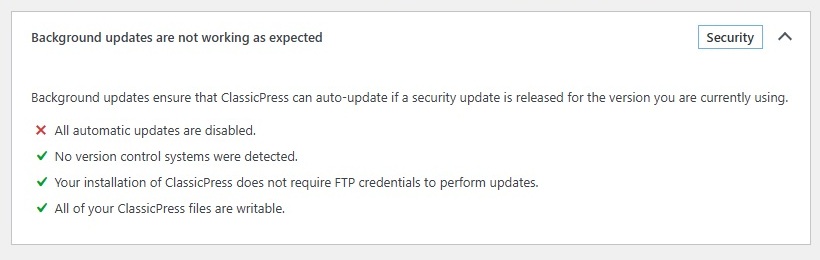
For example, the error message below tells you that auto-updates are globally disabled. If you did not do this yourself (with a plugin or via your wp-config file), than your host may have done this, in favour of their own update mechanism. To know for sure, you schould contact your host.