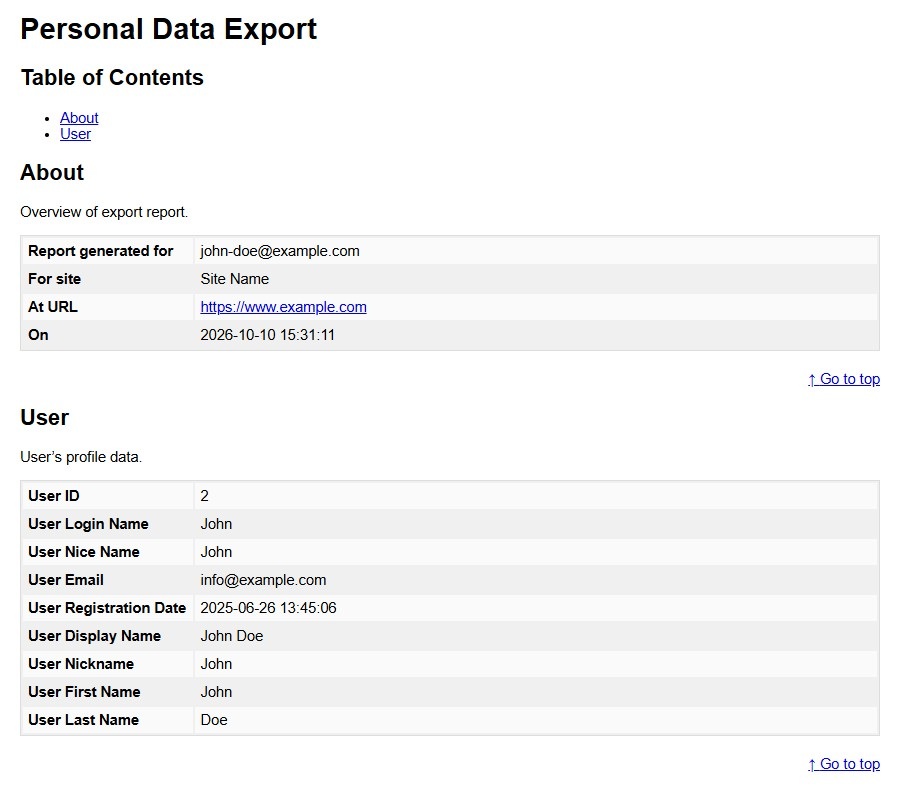
ClassicPress has a feature to archive user data for export. The Export Personal Data tool can generate a (zip format) file containing the personal data which exists about a user within your ClassicPress site.
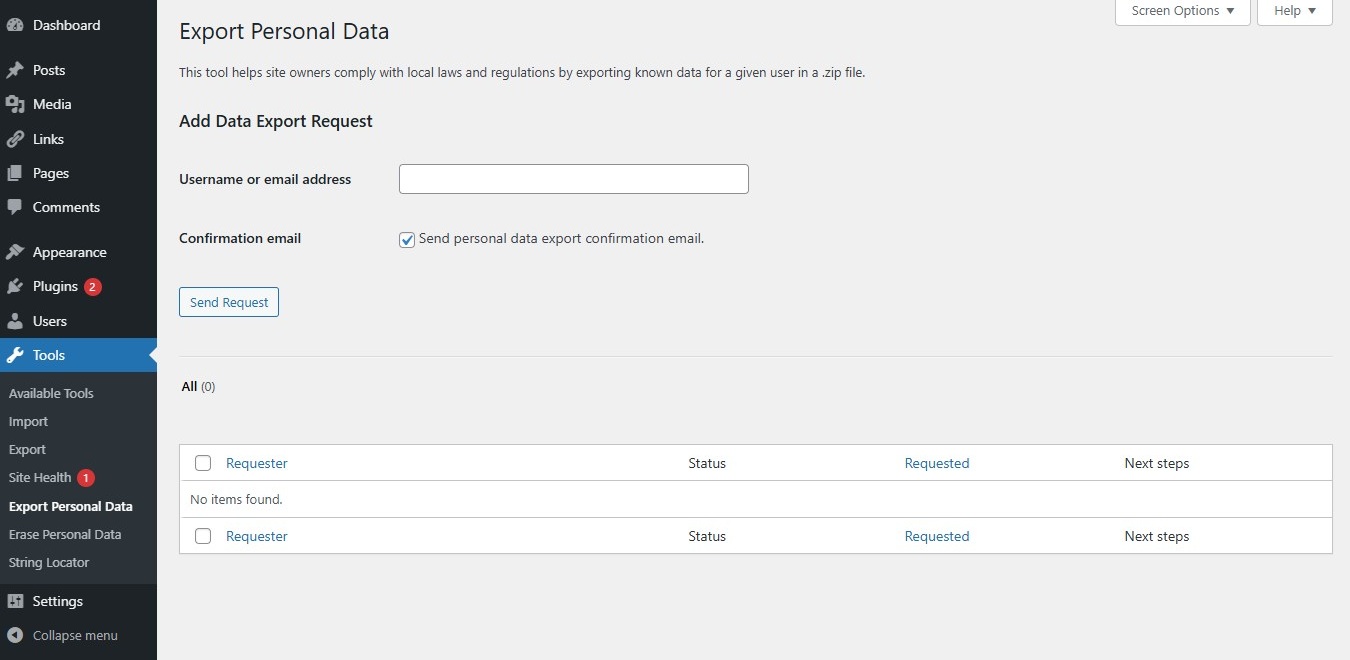
The Export Personal Data screen is accessible via the administration > Tools > Export Personal Data.
Using Export Personal DataLink to this section
Sending a requestLink to this section
The Export Personal Data tool uses email validation to send a user’s export request to an administrator.
The first step is to specify username or email address and click “Send Request”. If the request initiated successfully, the request will be shown in the table and the Status will be set on “Pending”.

The user will receive the following mail.
[Site Name] Confirm Action: Export Personal Data

Hello,

A request has been made to perform the following action on your account:

Export Personal Data

To confirm this, please click on the following link:
https://www.example.com/wp-login.php?action=confirmaction&request_id=1911&confirm_key=cwyFlqzdFhJzChZprLML

You can safely ignore and delete this email if you do not want to
take this action.

Regards,
All at Site Name
https://www.example.com
If the user clicks the link in the mail, the confirmation modal below is shown.
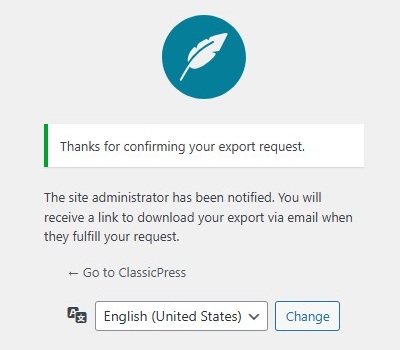
At the same time, the status of the export request will be changed to “Confirmed”. The “Next Steps” column shows a link called “Send export link”.

Sending a download linkLink to this section
When clicking the link called “Send export link” the user will receive the following mail.
[Site Name] Personal Data Export

Howdy,

Your request for an export of personal data has been completed. You may
download your personal data by clicking on the link below. For privacy
and security, we will automatically delete the file on 13 October 2026,
so please download it before then.

https://www.example.com/wp-content/uploads/wp-personal-data-exports/wp-personal-data-file-S7oSEqLSIas9hp5B2m06D3ciFENRS2jQ.zip

Regards,
All at Site Name
https://www.example.com
If the user clicks the link in the mail, a zip file will be downloaded that includes an index.html file. For details, refer below section “Exported Personal Data”. Note that the link is valid for 48 hours.
At the same time, the status of the export request will be changed to “Completed”. The “Next Steps” column shows a link called “Remove request”. When clicking that link, the export request will be permanantly deleted, without going to trash first.

Export without sending requestLink to this section
There are circumstances you want to export personal data without letting the user know, or without prior confirmation from the user. Or you, the administrator, want to export your own personal data. In that case you should disable the confirmation request that is send by email. Do not check the “Confirmation email” box. By doing this, your export request immediately gets the “Confirmed” status. This will let you send the download link to the user, or you could download the exported personal data yourself.
Filtering OptionsLink to this section
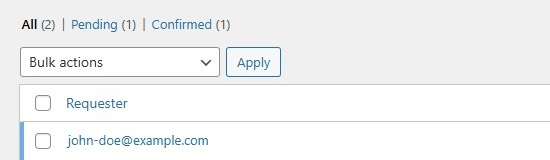
Above the table are links to All (export requests), Pending, Confirmed and Completed, that when clicked, will cause just the export requests of that type to be displayed in the underlying table.
Using Selection, Actions, and ApplyLink to this section
SelectionLink to this section
This screen allows Bulk Actions to be performed on one or more export requests selected in the table. For Bulk Actions to be performed on multiple exports requests at once, those export requests must be first selected using the checkbox to the left of the export request.
ActionsLink to this section
Actions describe the process to be performed on particular export requests. There are two styles of actions that will be referred to as Bulk Actions and Immediate Actions.
- Bulk Actions
These actions can be performed on one, or more export requests, at one time, if those export requests have been previously selected. Bulk Actions are available as choices in the Bulk Actions select box, above the table. - Immediate Actions
Immediate Actions (also known as Quick Edits) are performed immediately, on an individual export request. Hovering the mouse cursor over the export request row reveals the actions under the Requester column.
The available Bulk Actions are:
- Resend confirmation requests – This action lets you resend the confirmation email to all selected requesters.
- Mark requests as completed – This action lets you change the status to “Completed” for the selected users. This way you can share the download link with the users, bypassing the email confirmation.
- Delete requests – This action will permanently delete all selected export requests.
And the available Immediate Actions are:
- Download personal data – This action will download a zip file that includes an index.html file. This is the same file as the user can download.
- Complete request – This action lets you change the status to “Completed”. This way you can share the download link with the user, bypassing the email confirmation.
ApplyLink to this section
After one or more export requests are selected, and after a Bulk Action is specified, the apply button performs the given action on the selected export requests. Remember, prior to executing actions, one or more export requests must be selected, as described before.
Exported Personal DataLink to this section
The Export Personal Data tool only exports data from ClassicPress and participating plugins.
Since this tool only gathers data from ClassicPress and participating plugins, you may need to do more to comply with export requests. For example, you should also send the requester some of the data collected from or stored with the 3rd party services your organization uses.
From ClassicPress, the following data is exported as Personal Data:
- About the ClassicPress site
- User information
- Comments
- Media
Example of the exported index.html file: