
The Settings Permalinks Screen allows you to choose your default permalink structure. Permalinks are the permanent URLs to your individual posts and pages, as well as your category and tag archives.
By default, ClassicPress uses the plain permalink structure (?p=123), which relies on the unique post ID number. However, ClassicPress offers you the ability to create a custom URL structure for your permalinks and archives. This can improve the aesthetics and usability of your links.
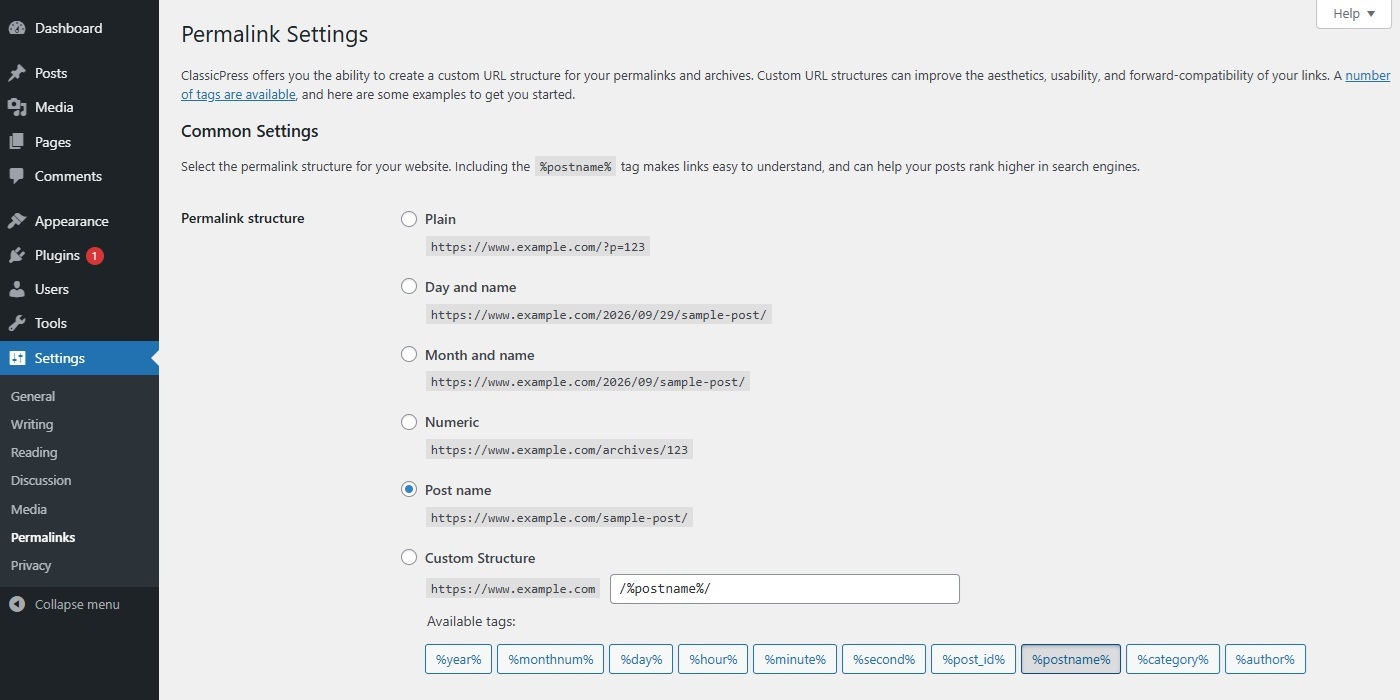
Common SettingsLink to this section
Check one of the radio buttons corresponding to the correct Permalink Structure for your site.
- Plain – An example of the plain (default) structure is
https://www.example.com/?p=123 - Day and name – An example of the day and name based structure is
https://www.example.com/2026/09/29/sample-post/ - Month and name – An example of the month and name based structure is
https://www.example.com/2026/09/sample-post/ - Numeric – An example of the numeric structure is
https://www.example.com/archives/123 - Post name – An example of the post name structure is
https://www.example.com/sample-post - Custom structure – In the box specify the custom structure you desire to use.
An example is/archives/%year%/%monthnum%/%day%/%postname%/
The available Permalink Structure Tags are displayed underneath the input.
Although there are various permalink structures, for SEO purposes we recommend using a pretty permalink structure such as Post name.
Permalink Structure TagsLink to this section
ClassicPress provides the following structure tags for creating your own custom permalinks. You can use these tags to customize your permalinks.
Note: do not put your site URL in the input field. Add one of the structure tags or a combination of tags.
End your structure with either %post_id% or %postname% so that ClassicPress can target an individual post for every permalink.
For example, a valid structure is /%year%/%monthnum%/%day%/%postname%/.
- %year% – The year of the post in four digits (e.g. 2026).
- %monthnum% – Month the post was published, in two digits (e.g. 09).
- %day% – Day the post was published in two digits (e.g. 30).
- %hour% – Hour of the day, the post was published (e.g. 17).
- %minute% – Minute of the hour, the post was published (e.g. 45).
- %second% – Second of the minute, the post was published (e.g. 15).
- %post_id% – The unique ID of the post (e.g. 425).
- %postname% – A sanitized version of the title of the post (the post slug).
E.g. “This is a great post!” becomesthis-is-a-great-postin the URI. - %category% – A sanitized version of the category name (the category slug).
Nested sub-categories appear as nested directories in the URI. - %author% – A sanitized version of the post author’s name.
But, as mentioned earlier, for SEO purposes we recommend using a pretty permalink structure such as Post name.
OptionalLink to this section
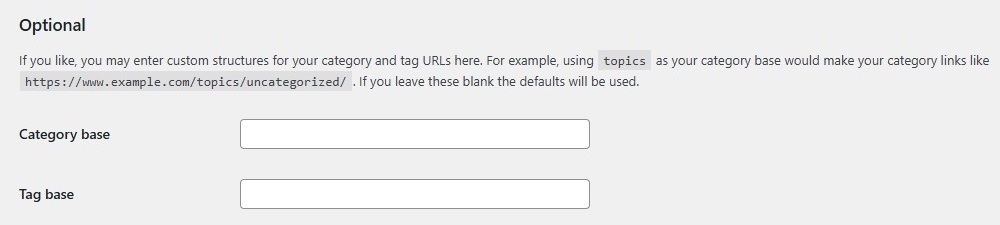
You may enter custom bases for your category and tag URLs here. For example, using /topics/ as your category base would make your category links like https://www.example.com/topics/uncategorized/.
Note: do not put your site URL in the input field. Add the custom base only.
- Category base – Enter a custom base (prefix) for your category URLs here.
- Tag base – Enter a custom base (prefix) for your tag URLs here.
If you leave these blank the defaults will be used.
Save ChangesLink to this section
When clicking the Save Changes button, a message will be displayed, depending on whether or not your .htaccess file is writeable.
- If the
.htaccessis writeable, you will see a “Permalink structure updated” message. ClassicPress has been able to do everything for you automatically. - If the
.htaccessis not writeable, you will see a message with instructions on how to do this manually.