
The Settings Media Screen controls the various settings related to images and other media that are used in writing posts and pages.
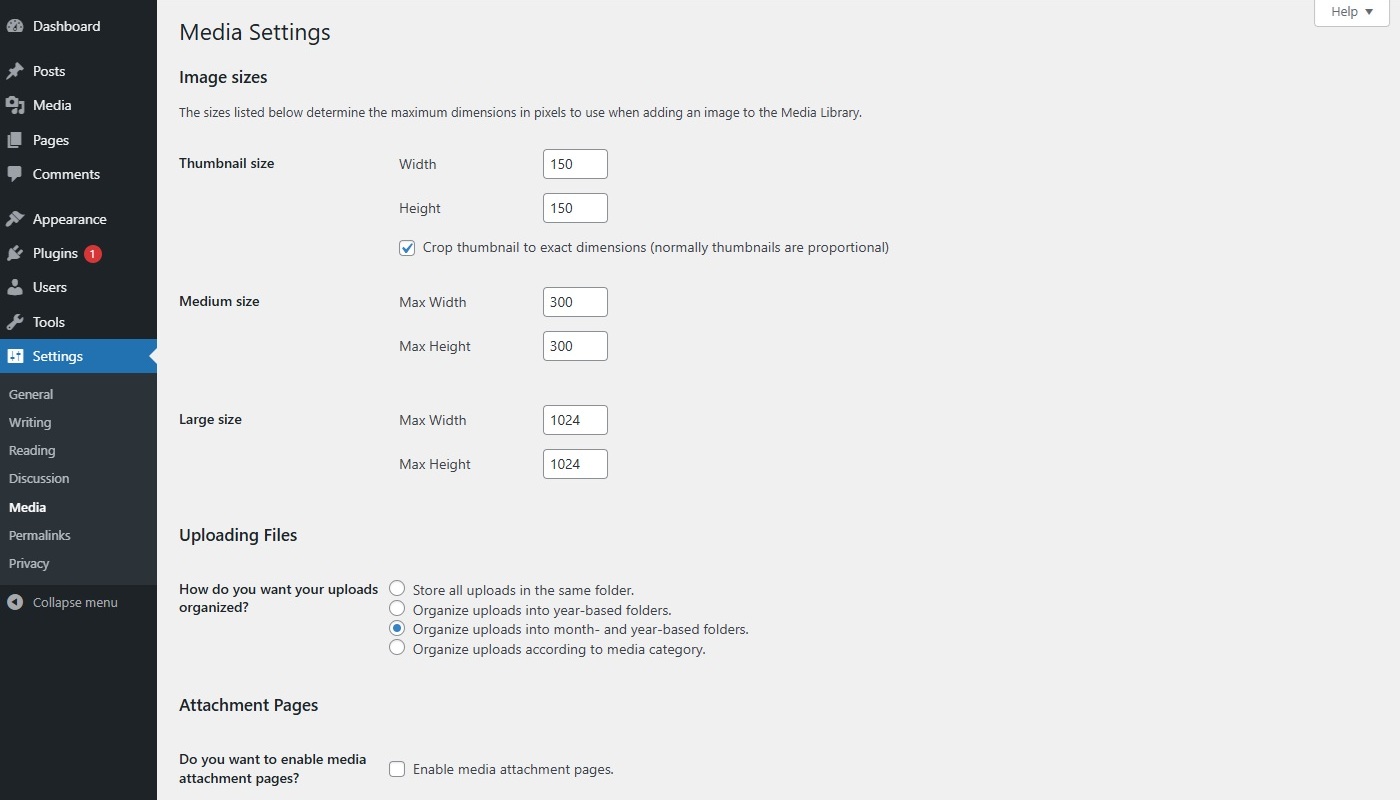
Media SettingsLink to this section
Image sizesLink to this section
Note: You will need php-gd (GD graphics library) installed on your server to use this feature.
The sizes listed below determine the maximum dimensions in pixels to use when inserting an image into the body of a post or page.
- Thumbnail size – Enter the width and height
- Medium size – Enter the max width and max height
- Large size – Enter the max width and max height
Uploading FilesLink to this section
How do you want your uploads organized? – You can choose how you would like uploads to be organized after uploading. By default uploads are organized into month- and year-based folders.
The default path setting for the uploads folder is wp-content/uploads. A file uploaded in September of 2026 would be placed into the wp-content/uploads/2026/09 folder.
If you choose to upload your media files “according to media category”, you have to select the relevant media category each time you are uploading media files to the Media Library. Media files that are uploaded via the Add Media button in the post or page editor and featured images will be placed in the default media category. If you want to change the default media category, you can do so on the main Media Library page.
Attachment PagesLink to this section
Do you want to enable media attachment pages? – Media attachments, including image, audio, video files, can have attachment pages. An attachment page displays information about a particular media file you have uploaded to your site. You can choose to enable or disable attachment pages.