
Use the Settings Writing Screen to control the interface you use when writing new posts or pages. Also included are settings to control the optional features Post via email and Update Services, that could be used for sharing post content.
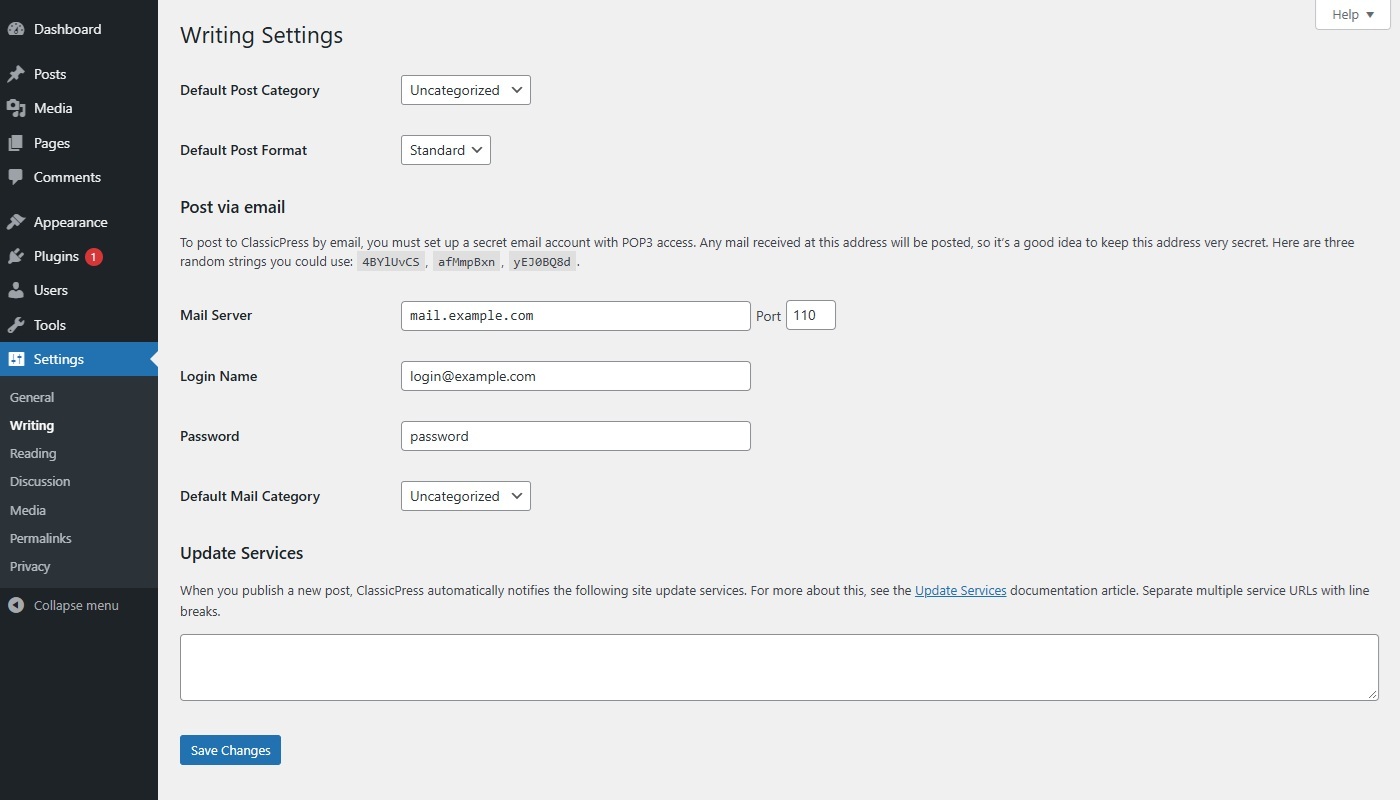
Writing SettingsLink to this section
- Default Post Category – The category you select from this select box is called the default post category. The default post category is assigned to a post if you fail to assign any other categories while writing your posts. If you delete a category, the posts in that category will be assigned the default post category. If you have several categories, but use one of those categories more frequently, select that category here to make your life a little easier.
- Default Post Format – The post format you select from this select box is called the default post format. Post formats are used by themes to create different styling for different types of posts. This settings is only visible if the current activated theme supports post formats. Our default The ClassicPress Theme does not support posts formats, but the Twenty Seventeen theme does.
- Default Link Category – If you’ve enabled the Link Manager via the Settings > General screen, you can select the default link category via this select box. To display links at the public facing site, there must always be at least one link category.
Post via emailLink to this section
The “Post via email” feature has been deprecated and will be removed in version 3 of ClassicPress. We therefore recommend that you do not use it.
With this option, you can set up your blog to publish emails as blog posts. To do this, you would send an email to a specific address you’ve established for the purpose. More than likely, you will need the help of your web host and/or your email provider.
To post to ClassicPress by email, you must set up a secret email account with POP3 access. Any mail received at this address will be posted, so it’s a good idea to keep this address secret.
Complete the following fields to post by email:
- Mail Server – A mail server receives emails on your behalf and stores them for retrieval. Your mail server will have a URI address, such as mail.example.com, which you should enter here.
- Port – Servers usually use port 110 to receive requests related to emails. If your mail server uses a different port, enter that port number here.
- Login Name – If, for example, the email address that you will be using for the writing by email feature is [email protected], then “classicpress” is the login name.
- Password – Enter the password for the above email address here. Three random passwords are displayed by ClassicPress in the introduction section of this screen.
- Default Mail Category – ClassicPress will assign this category to all of the posts published via the “Post via email” feature.
Update ServicesLink to this section
Update Services are tools you can use to let other people know you’ve updated your blog. When you publish a new post, ClassicPress automatically notifies the update services of the sites listed in the input box.
You could use Ping-o-Matic as your Update Service.
Ping-O-Matic is a service to update different search engines that your blog has updated.
We regularly check downstream services to make sure that they’re legit and still work. So while it may appear like we have fewer services, they’re the most important ones.
For Ping-o-Matic enter this URI in the Update Services input box: https://rpc.pingomatic.com
When entering services, separate multiple URIs with line breaks.